
Pre-event setup
In the controller's left panel, set the default behavior of the Live View that participants see. These settings apply to the whole conference, and only the conference owner can change them.
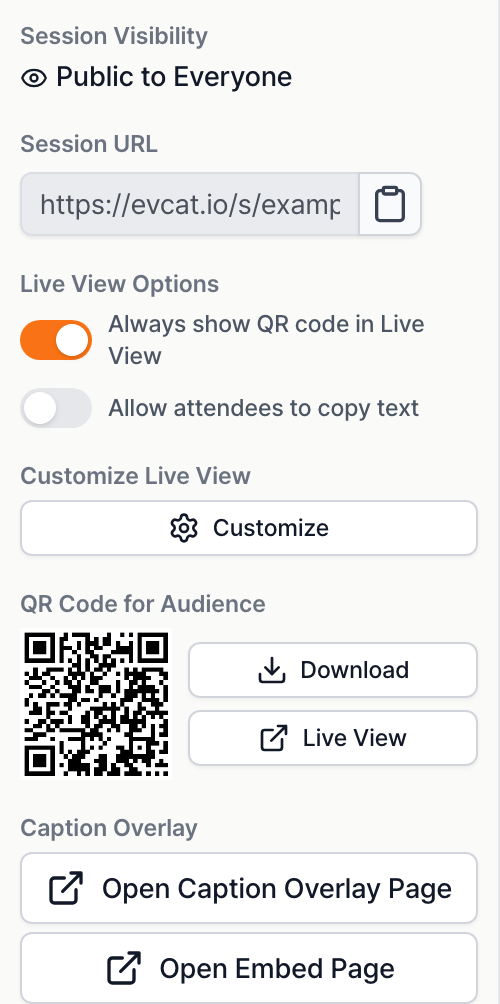
Allow participants to copy text from the Live View
Off by default. Participants can't select or copy subtitles or use right-click. Turn it on if you don't need to protect the presentation content. Signed-in operators can always copy.
Always show the QR code on the Live View
Keeps the participant QR code at the top right of the Live View. Anyone looking at the screen can join right away on their own device.
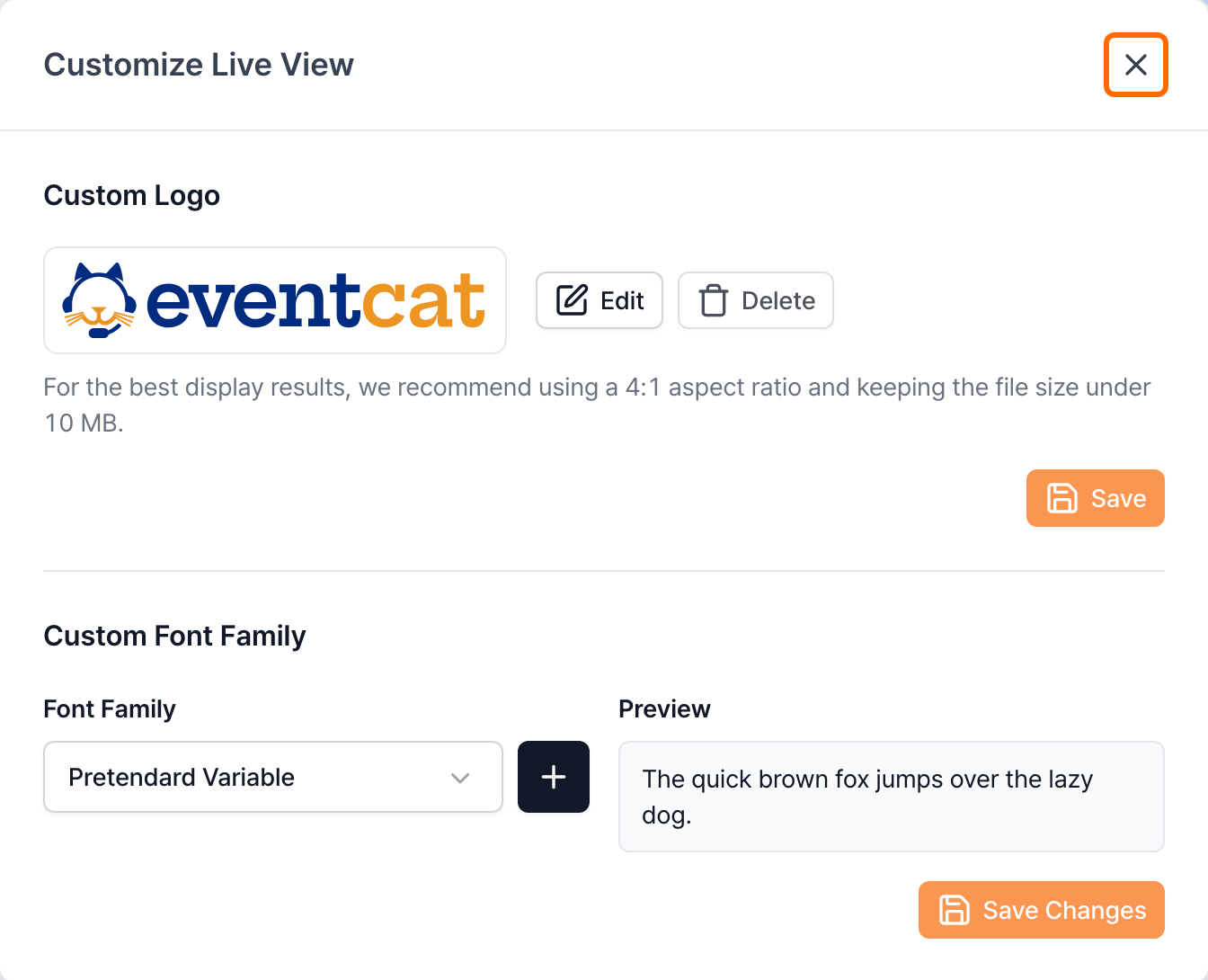
Live View customization → Customize
Upload your event logo (4:1 ratio recommended, 10 MB or less) and change the Live View font. For detailed layout, see Screen customization.
Check Participant text copying is blocked by default. If your event allows sharing the content, turn it on before the event.