
CASE 2 · Vertical LED screens
CASE 2 · Vertical LED screens
- Open the EventCAT Live View in your browser.
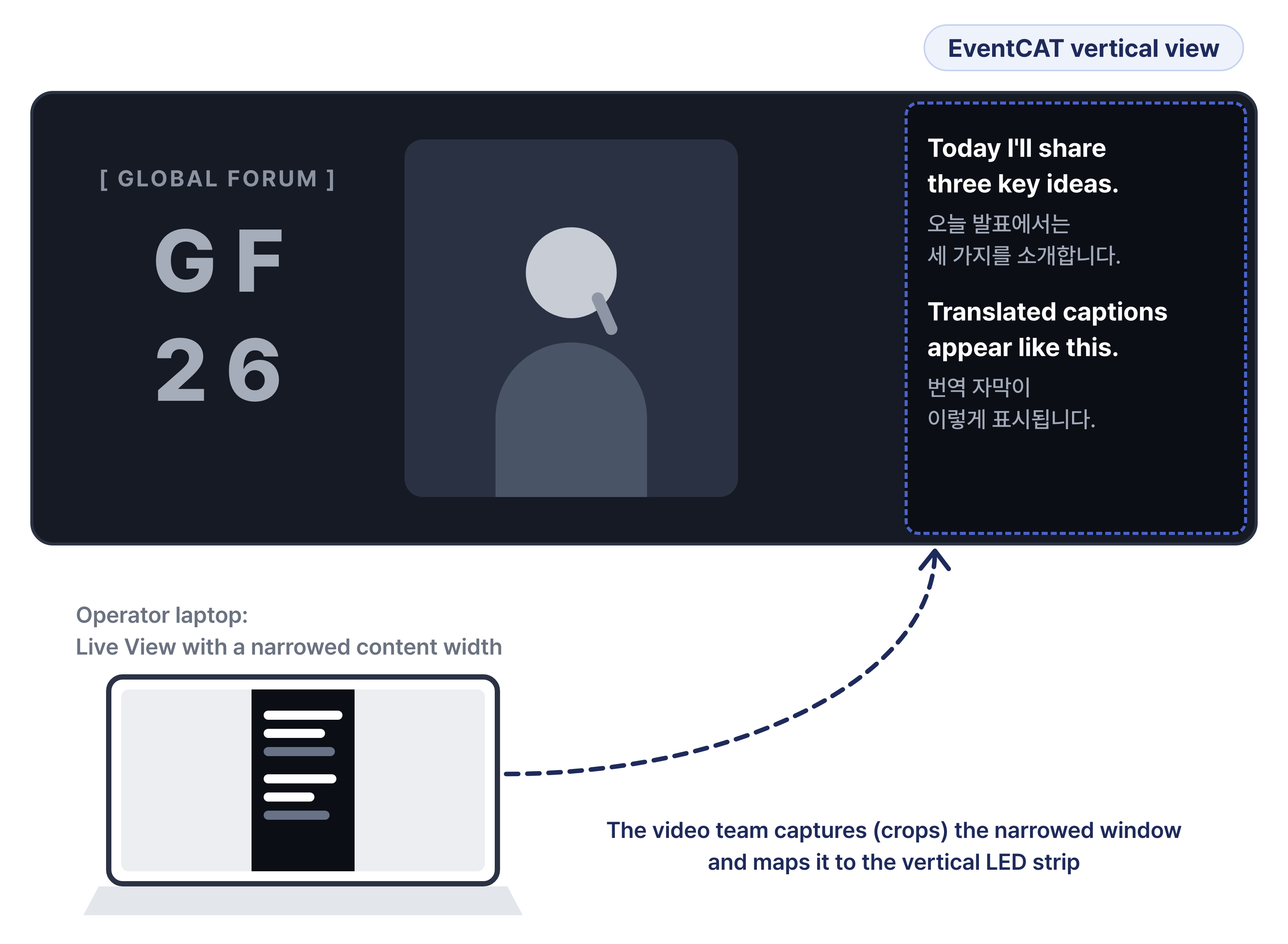
- In Screen customization (Custom) → Content width (px), reduce the value to fit the vertical screen's ratio. Only the subtitle area narrows and the setting is kept, so this is the most reliable option.
- Hand the screen to the video team over HDMI or as an extended display.
- The video team captures (crops) the subtitle area and maps it to the vertical LED strip.
- For several languages, open a separate tab for each language and map each one to its own strip.
Alternative — Narrow the window
If you can't use Content width, you can narrow the browser window yourself. The layout is responsive, so subtitles reflow automatically.
Tip Prepare 2–3 backup tabs with the same ratio in advance. If the ratio gets off, you can switch to a backup tab right away.