
For all setups · When subtitles are hard to read
For all setups · When subtitles are hard to read
Use the 🔧 Settings menu at the top right of the Live View to adjust the subtitle screen for your venue.
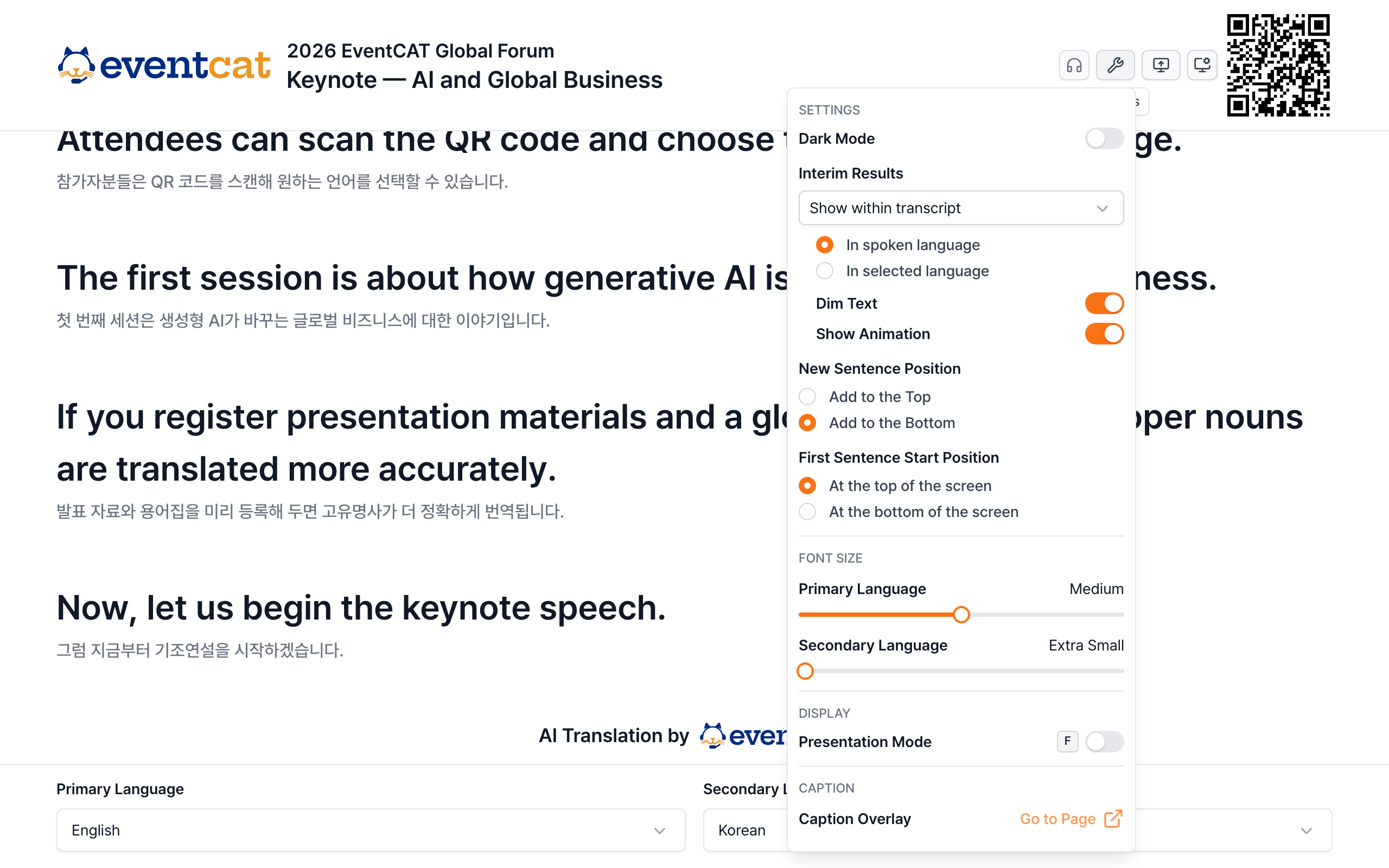

Interim results
Choose how unfinished sentences are shown while someone is still speaking: Don't show / Show in body (source or a selected language). When shown in the body, you can turn on dimmed or animated display.
Sentence position · Dark mode · Font size
Where new sentences are added (top/bottom), where the first sentence starts, dark mode, and font size for the main and secondary languages
Presentation mode — F key
Hides the header and footer and shows only the subtitles, in large text. Press F to turn it on and F or Esc to turn it off. A short hint on how to exit appears at the bottom of the screen. (Desktop only)
You can also use the Show as one line at the bottom option, which shows interim results in a single line at the very bottom of the screen.
When you enter presentation mode, "Press F or Esc to exit" appears at the bottom of the screen for 3 seconds.