

Why this guide?
This guide explains how to set up real-time AI translated subtitles using EventCAT OnlineMeeting with Microsoft Teams. Meeting hosts can begin setup via the following link:
https://eventcat.com/en
1. Log in or Sign Up
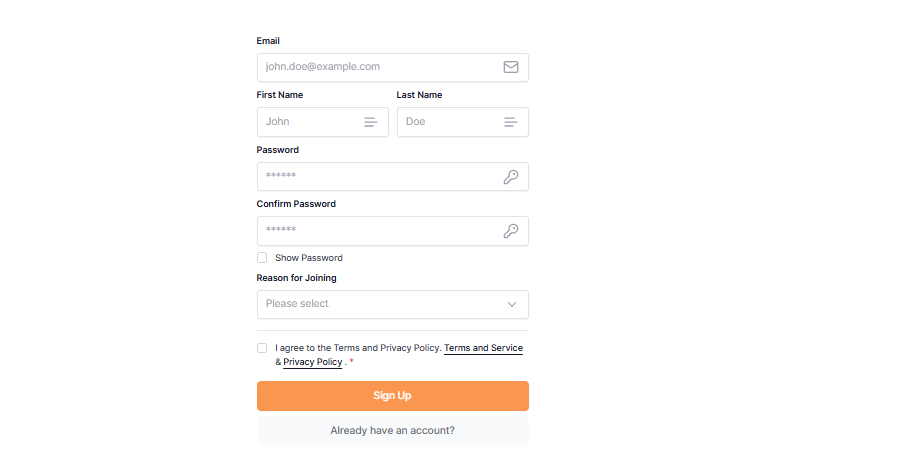
Existing Users: Log in with your email and password
New Users: Create an account by entering your email and password
2. Create a Meeting and Set Up Translation
Click the Invite AI Interpreter button
Select your preferred translation model:
Swift: Fast processing speed
Wise: More refined quality
Related article: What’s the difference between the Swift and Wise models?
Paste the link of the Microsoft Teams meeting room you created
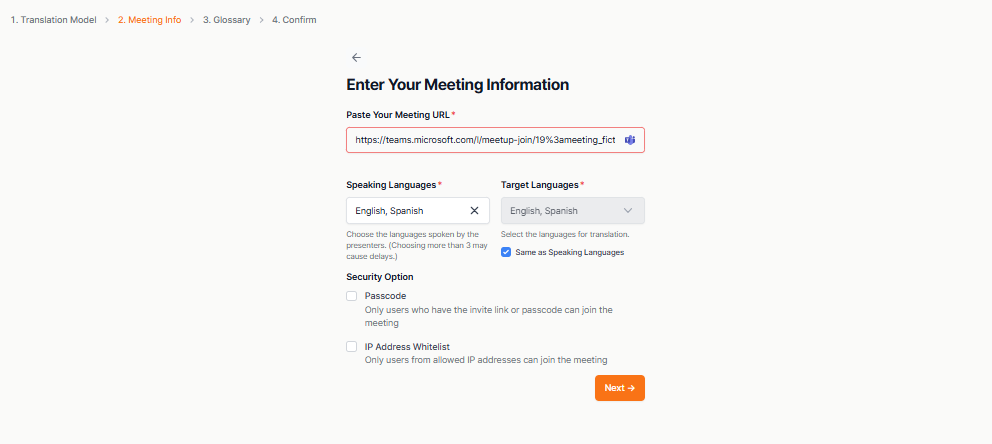
Choose the spoken language and the target translation language
For added security, you can enable Passcode or IP Address Whitelist
Create a new glossary or select an existing one, then confirm
Related article: What is a glossary?
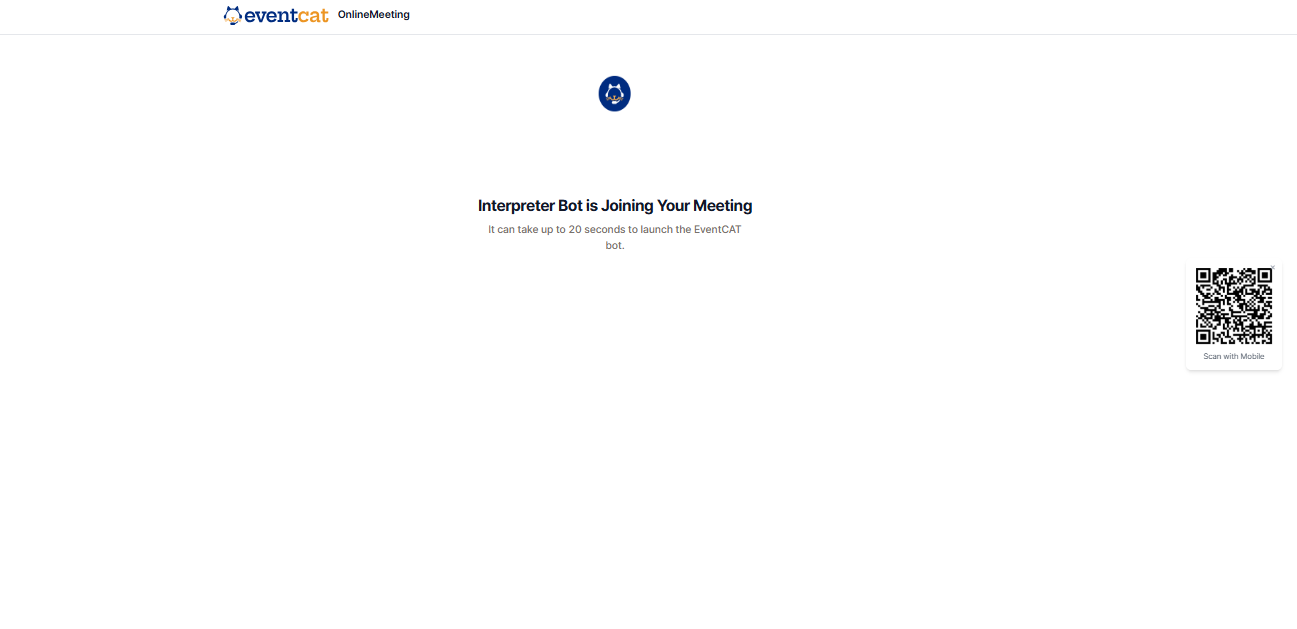
After reviewing all meeting details, click Invite AI Interpreter and wait for the interpreter bot to enter the waiting room (approx. 20 seconds).
Do not leave the translation screen — real-time subtitles will be displayed there.
3. Approve AI Interpreter Entry
When a pop-up appears in the Microsoft Teams meeting room, click Admit to allow the EventCAT bot to join.
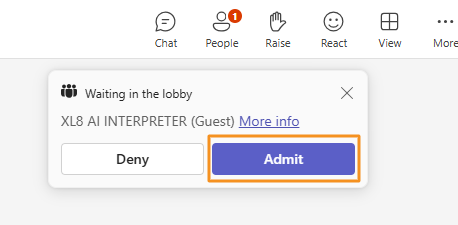
You must also approve the Allow Recording prompt that follows to ensure the translation function works properly.
Important Notes
If you are using Microsoft Teams with a paid plan, the subtitle page link is automatically shared in the chat window.
If you're using the free plan, the link won’t be shared automatically. In this case:
Manually copy the subtitle link displayed on your screen and paste it into the Teams chat
Participants can click or copy the link to access the translation page
4. Overview of Key Features on the Translation Screen
Screen Layout Options
Classic Layout: Simple and clean
New Layout: Enhanced subtitle UI
Quick Start Guide
A basic tour for first-time users
Participant View
View a list of users currently accessing the subtitle screen
Identify participant regions using IP addresses
Open the Meeting on Your Phone
When viewing the meeting detail page on a desktop screen, a floating QR code appears on the right side.
Scan the QR code with your phone to open the same meeting instantly.
Click × to close the QR card.
Open the gear icon and enable Show QR code to display it again.
Your visibility preference is saved for future visits.
This feature is available only on desktop screens with a width of 1024 pixels or more. It is hidden on mobile and tablet devices.
Bot Auto Exit
Set the EventCAT bot to automatically leave after the meeting
Customer Support Access
Instantly contact support if an issue arises during the meeting
Settings Panel
Toggle between Light Mode and Dark Mode
Adjust subtitle display style and font size
Switch the subtitle language to the one you prefer to read
“There’s an easier way — use calendar invites!”
Instead of pasting the meeting link, you can simply add bot@eventcat.com as a guest in your Google Calendar or Outlook invite.
The interpreter bot will automatically join, and real-time subtitles will be provided without extra setup.
The subtitle link will be shared via the meeting chat window.
Related article: EventCAT Calendar Bot – Get real-time subtitles with one invite
(Available for paid plan users.)
5. Download Subtitles After the Meeting
After the meeting ends, you can download subtitles in your preferred language. Subtitles in multiple languages can be downloaded from a single meeting.
Data Security Notes
Subtitle scripts and recorded data are stored based on your preferences at:
EventCAT OnlineMeeting > Settings
Storage options include:
Immediate deletion
7-day storage
Permanent storage
Please review your data retention policy to ensure compliance with your security needs.
Additional Support
Using Zoom or Google Meet too? No worries — EventCAT supports them as well.
Related article: How to use EventCAT with Zoom
Related article: How to use EventCAT with Google Meet
If this guide does not resolve the issue, users can reach out for further assistance:
Go to EventCAT Help Desk
Need more help? contact@eventcat.com