
CASE 3 · Guiding participants
CASE 3 · Guiding participants
You don't need to swap QR codes for every session. A room QR automatically takes participants to whichever session is currently running in that room.
- In the conference settings scheduler, click the QR icon next to the room name to download the room QR.
- Place the room QR at the room entrance, on seating materials and on the screen's standby display.
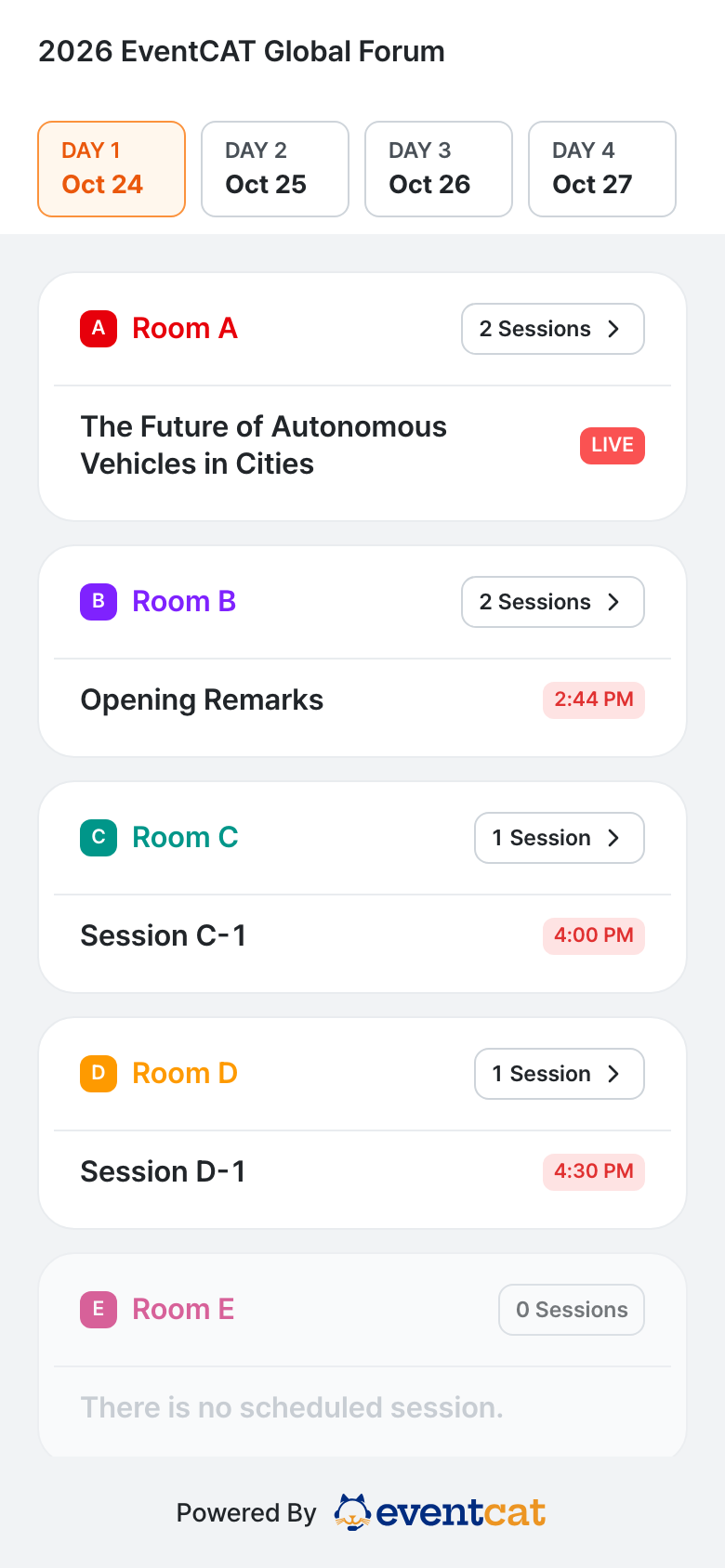
- When participants scan it, they go straight to the subtitle screen if a session is running, or to the room's session list if not.
- The session and room lists have day tabs (Day 1, Day 2…) so today's schedule shows first, and running sessions are marked Live now.
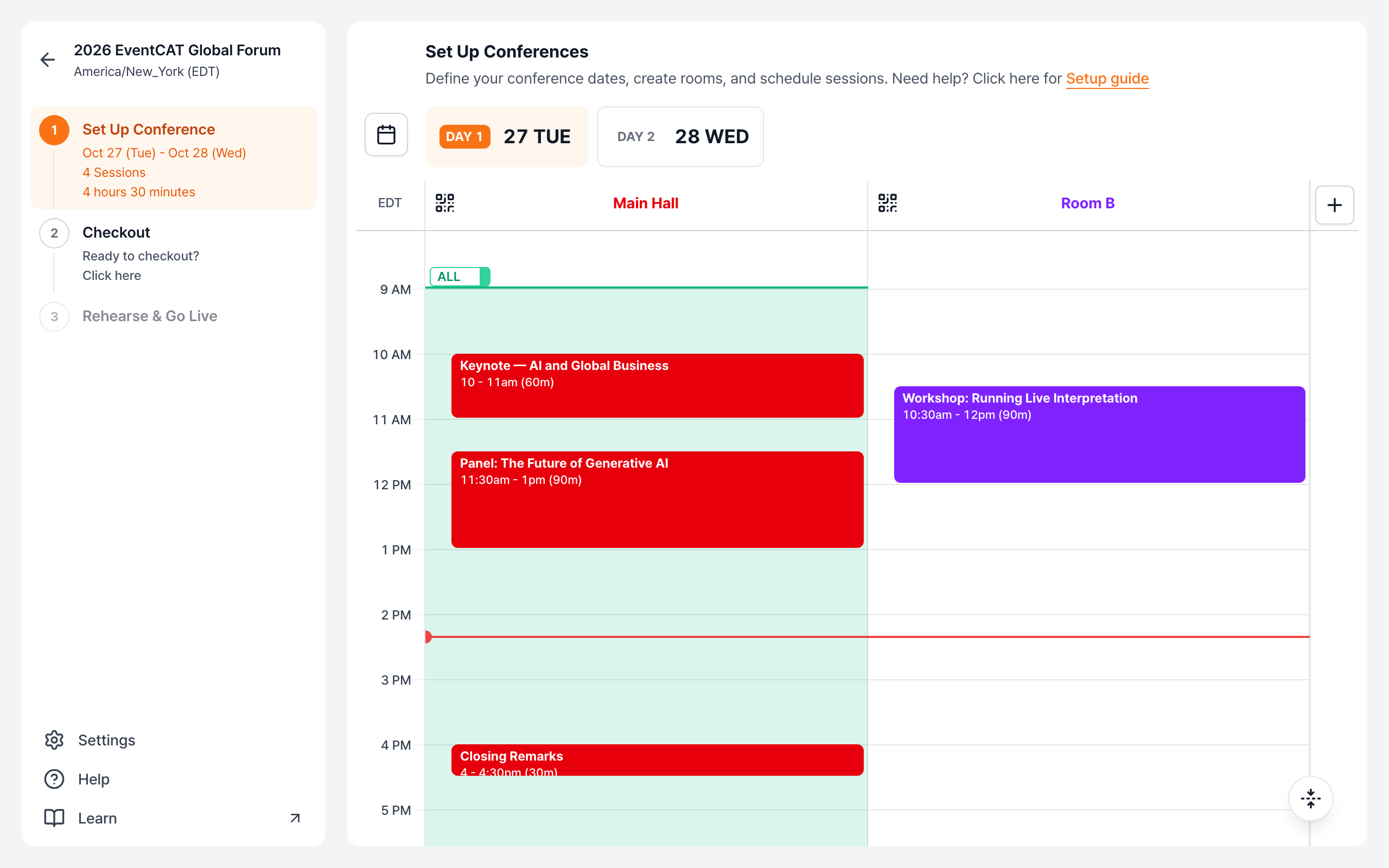
Tip If you open the scheduler during the event, today's date is selected first. A session QR (the participant QR in the controller) links to that one session only.