
After the event
When the event is over, end the session and gather the outputs. EventCAT generates the transcripts and summaries.
Download translations (controller)
In the right panel, go to Tools → Download translations to get the transcript for each language or all of them.
Create a session summary
After the session ends, go to Tools → Session summary. It's available when the transcript has 20 or more sentences and can take up to 10 minutes. You can also re-summarize per language.
Download the whole conference at once
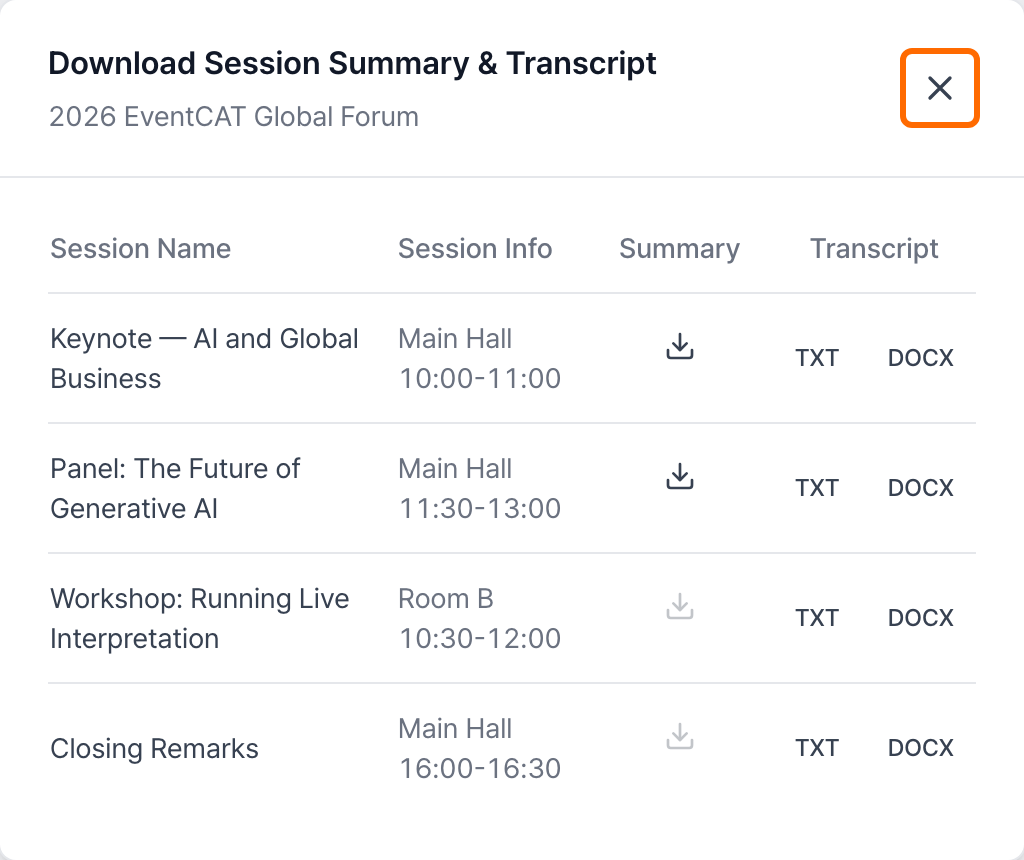
Open Download from the conference list to bring up the Download session summaries and transcripts window. You can get summaries for each session (a ZIP of TXT files per language) and transcripts (TXT, DOCX).
Delete translations
In the controller's right-hand tools, open the ⋯ menu next to Download Transcript and choose Delete Transcript. You can't delete while the session is live. Deleted transcripts can't be recovered, so download them first. This is mostly used to clear rehearsal transcripts before going live.
In the download window, a dimmed summary icon means that session doesn't have a summary yet.
Tip Check with the person in charge where to send the Summary and the full Transcript, and share them by email or a cloud link.