
Get to know the operator screen
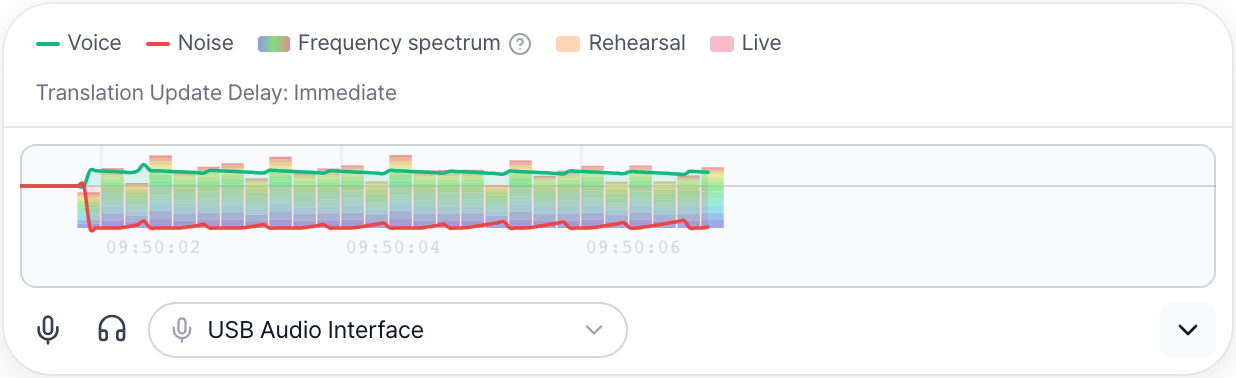
This card sits right below the transcript. You can watch the subtitles and check that sound is coming in, all in one place.
- Select mic — Pick your audio interface (e.g. Yamaha AG06MK2) from the dropdown. To use several mics, check Multiple input devices at the top.
- Check the graph — When someone speaks, the green Voice line should rise. If the red Noise line stays high, check your input. Rehearsal segments are shown in orange and live segments in red.
- Mute — Stops sending mic audio to translation. Silence keeps being sent to hold the connection.
- Listen — Plays the incoming sound through your speakers. Use headphones to avoid echo.
- ^ Details — Expands the legend, input levels per device and the translation update interval.
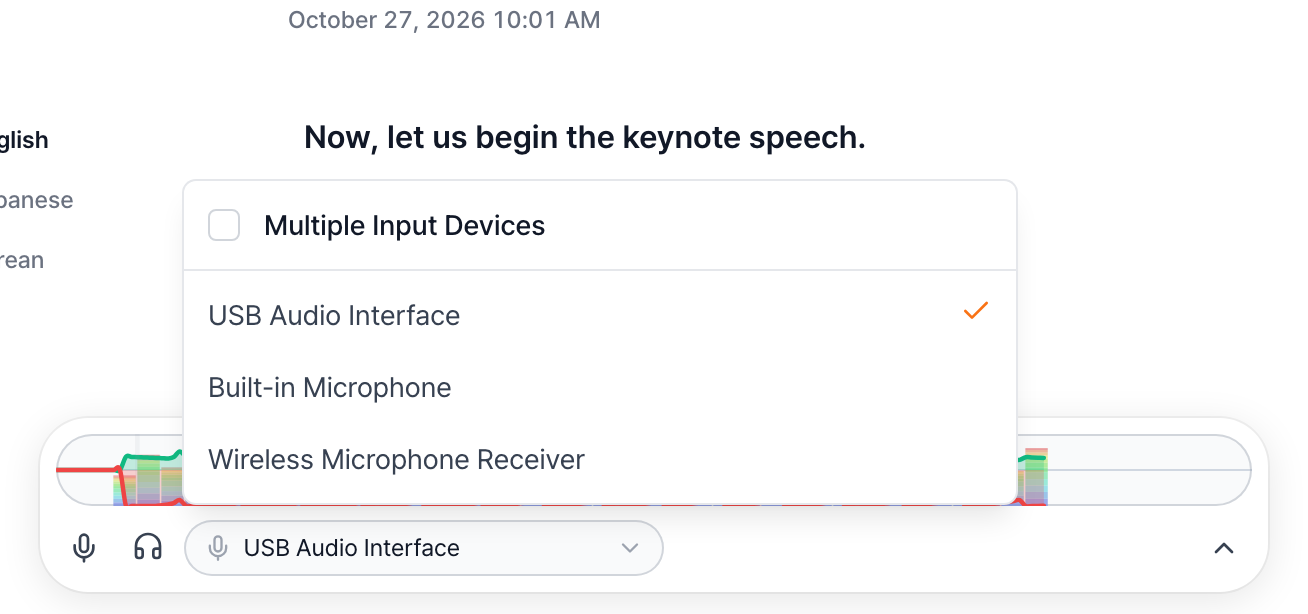
Warning You can't change the mic while a session is running. Settle on your input device before you start the session.