
Why this Guide?
With this guide, you'll learn how to use the EventCAT Chrome Extension. You can invite a real-time AI interpreter to your meeting with just one click, no need to visit the EventCAT website or go through a setup.
If you forgot to invite the EventCAT Bot through your Google or Microsoft calendar or prefer to act on the spot, the Chrome Extension allows you to invite the bot directly from your Google Meet session.
Related article: EventCAT Calendar Bot
How to Use the Chrome Extension
1. Install the Extension
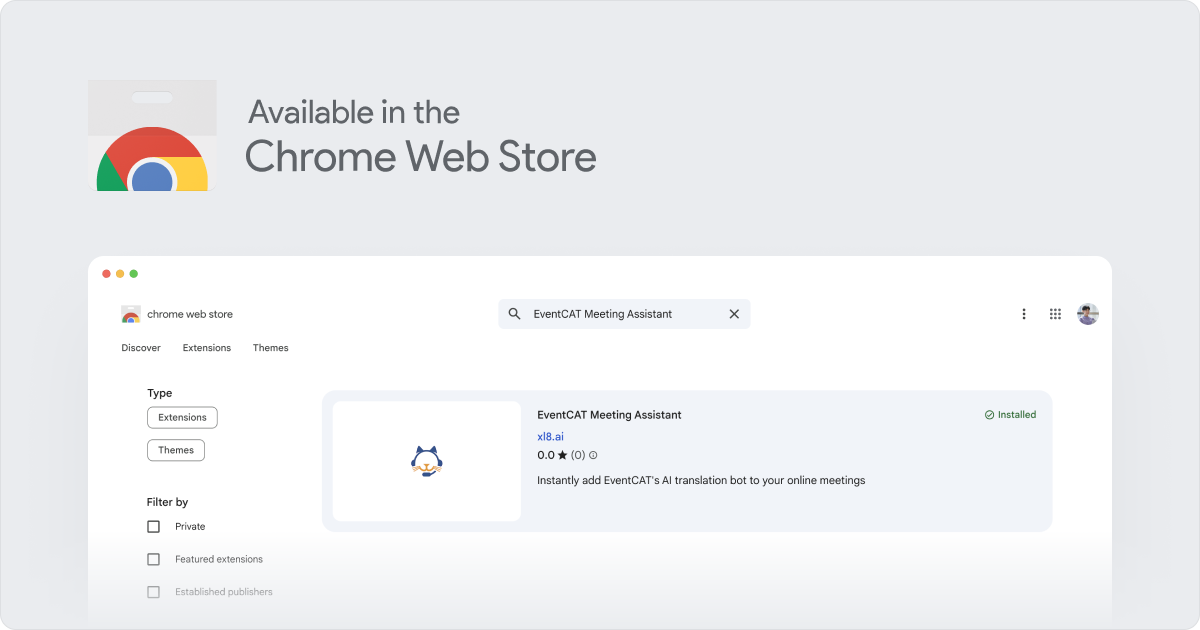
- Go to Chrome Web Store and install EventCAT Extension
2. Log in with your Google Account
When prompted, sign in to your EventCAT account with your Google credentials.
3. Start your Google Meet
- Launch your meeting as usual on meet.google.com.
4. Click the EventCAT Extension Icon
Located in your Chrome browser toolbar.
A small window will open, and confirm the meeting language settings if needed.
5. Done!
The EventCAT AI Interpreter Bot will be invited into your meeting room automatically.
Participants will receive the translation subtitle link via the Meet chat.
Related article: How to View Real-Time Translation Subtitles in OnlineMeeting
Additional Information
The Chrome Extension is currently optimized for Google Meet only.
Make sure you're signed into the same Google account for Meet and EventCAT.
If translation doesn’t start, verify that your spoken/target languages are set correctly in EventCAT > OnlineMeeting > Preferences.
Proactive Tips
Pin the extension to your browser toolbar for faster access.
Run a quick test before your actual meeting.
Use together with the Calendar Bot for full coverage.
If this guide does not resolve the issue, users can reach out for further assistance:
Go to EventCAT Help Desk
Need more help? contact@eventcat.com