Which setup fits your event?
How you show subtitles depends on the venue. Choose the method that fits: standard screen, vertical view, QR only or caption overlay.
Which setup fits your event?
- CASE 1 · Standard screen — Live ViewSend the laptop screen to the venue screen over HDMI. This is the most common setup.
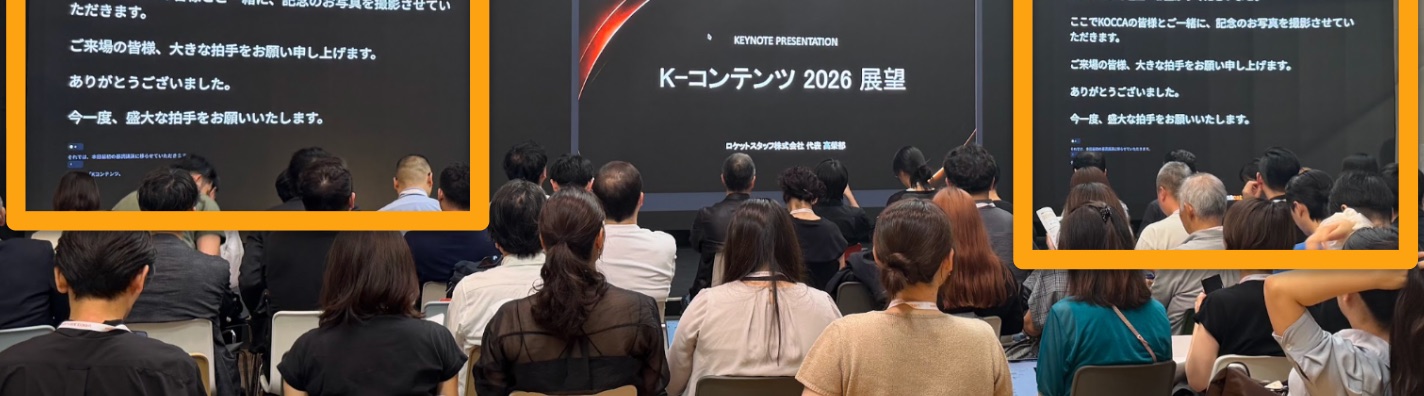
- CASE 2 · Vertical view — Vertical LED stripsShow subtitles in the vertical areas on both sides of an ultra-wide LED wall. Set it up by narrowing the browser window.
- CASE 3 · QR only — MobileNo screen. Attendees read subtitles on their own devices and can listen to audio with earphones.
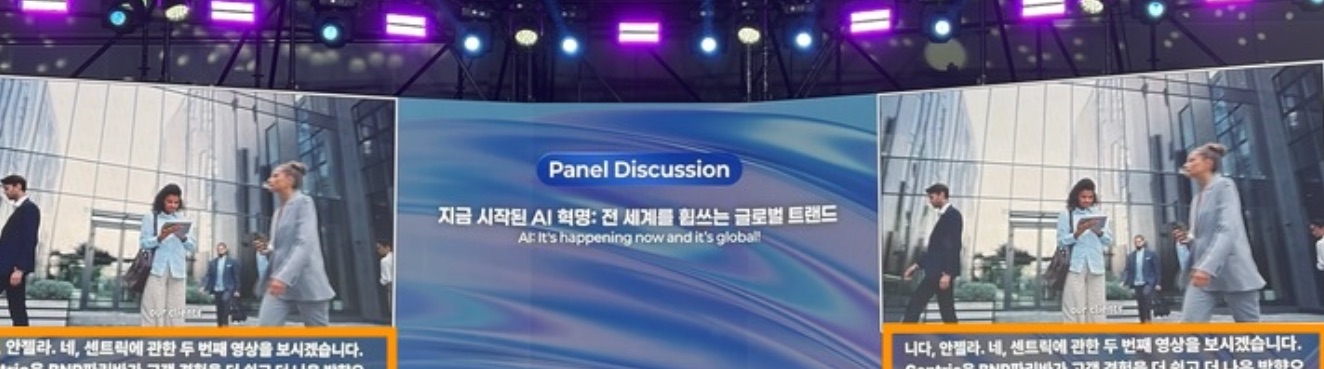
- CASE 4 · Caption overlay + OBS — StreamingLay subtitles over video for online broadcast. Included with the All-day MAX pass.
Real-world examples by case
- CASE 2 · Vertical view — Vertical screens on both sides of the stage: Korean and English subtitles cropped and mapped onto the left and right vertical strips.
- CASE 1 · Horizontal Live View — Side screen: The presentation screen stays as is, and the Live View is shown on a side display.
- CASE 1 · Horizontal Live View — Either side of the presentation screen: Live View subtitles shown on the screens on both sides of the central presentation screen.
- CASE 4 · Caption overlay — Subtitles at the bottom of the screen: Subtitles laid over the video at the bottom of the left and right screens.