Right after you arrive on site · Screen layout
Laptop and screen layout ① — Basic setup
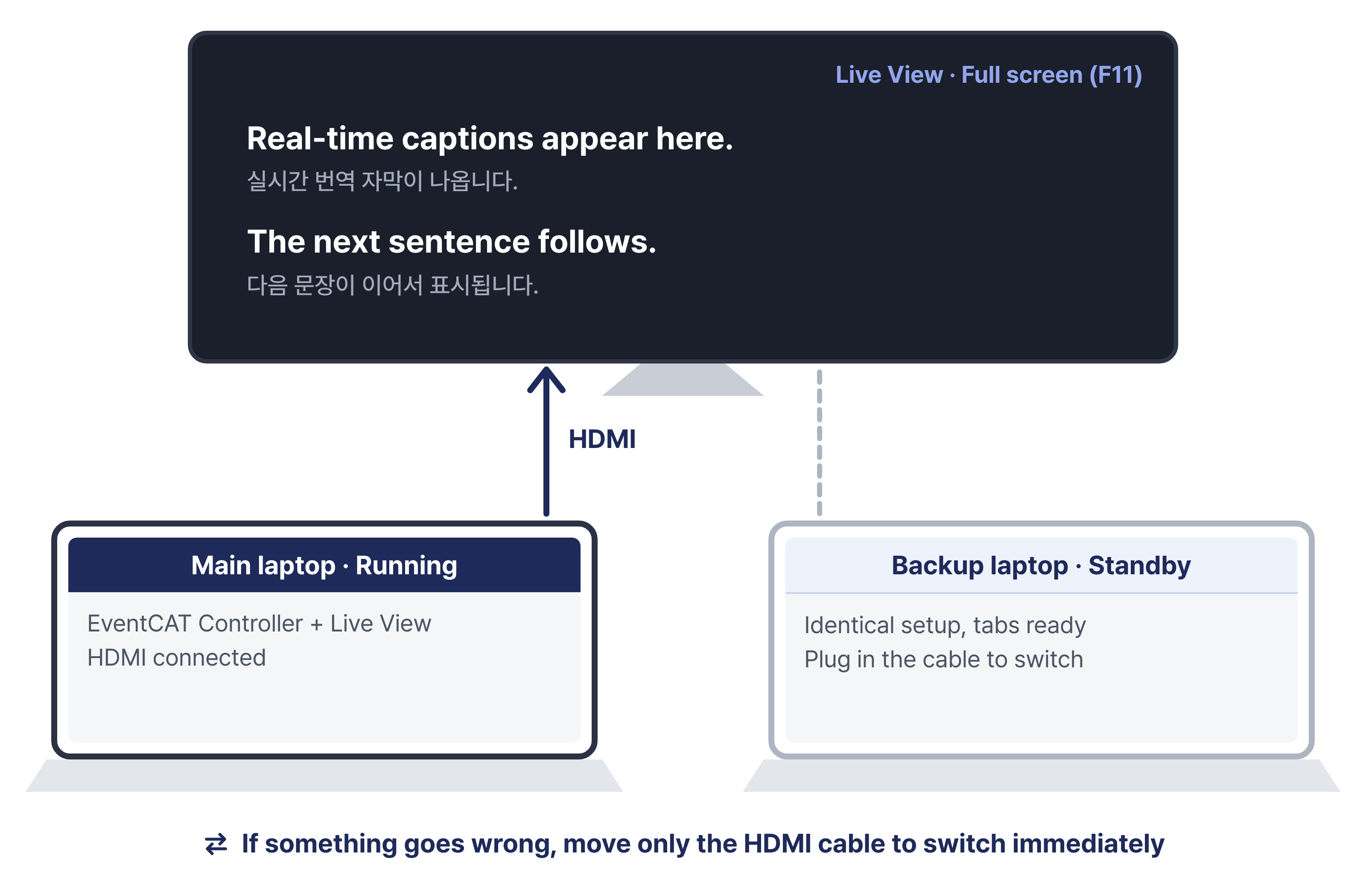
Basic — One laptop + HDMI extended display
- Extended display — Large screen: Live View · F11
- Laptop — EventCAT controller: start session, select languages, audio input, edit subtitles. Notifications and pop-ups appear only here
- Connect via HDMI in extended mode
Controller on the laptop — Live View on the screen behind
When you need a separate screen for each language
- Extended display — Two tabs (Korean tab, English tab)
- The video team crops and maps each tab
Warning As a rule, don't use duplicate (mirroring) mode. Use it only as a temporary fallback when extended mode won't work. Keep actions to a minimum while the controller is visible, and switch back as soon as extended mode is restored.
Laptop and screen layout ② — Running a backup with two laptops
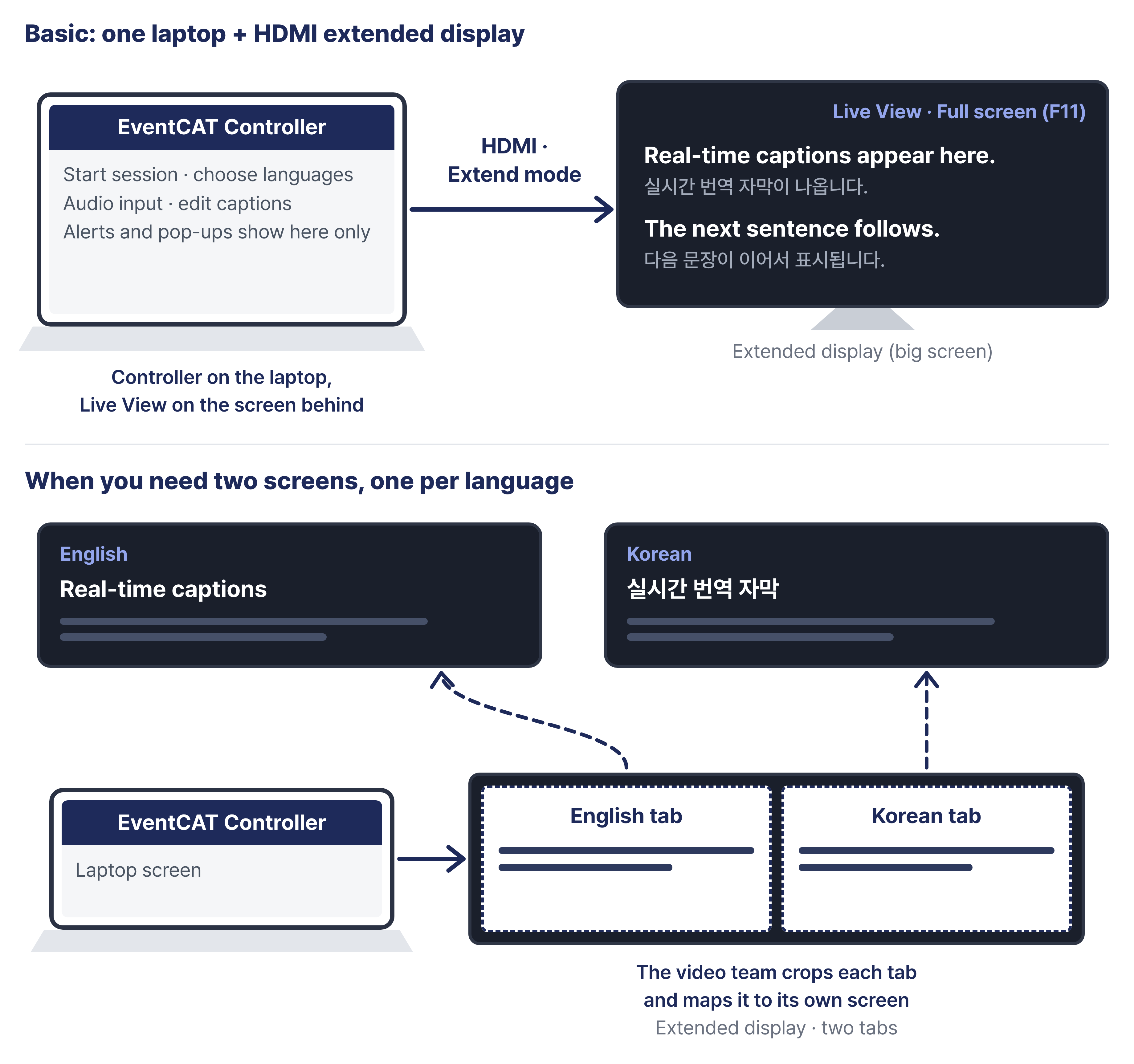
Main laptop
Runs the event with the controller and Live View open.
Backup laptop
Set up exactly like the main one and kept on standby — same sign-in, same tabs.
How to switch
If the main laptop has a problem, move the HDMI cable to the backup laptop and put the Live View in full screen with F11.
- Main laptop — Running: controller + Live View, HDMI connected
- Backup laptop — Standby: same setup, tabs ready. Plug in the cable and you're switched over
⇄ If something goes wrong, just move the HDMI cable to switch instantly
Tip Check the backup laptop during rehearsal too, so it can take over right away during the event.