
Pre-event rehearsal
- No pass time usedIn Rehearsal mode, passes aren't activated and prepaid balance isn't charged.
- Same as the real thingTest every feature in advance, including audio input, translation and subtitle output.
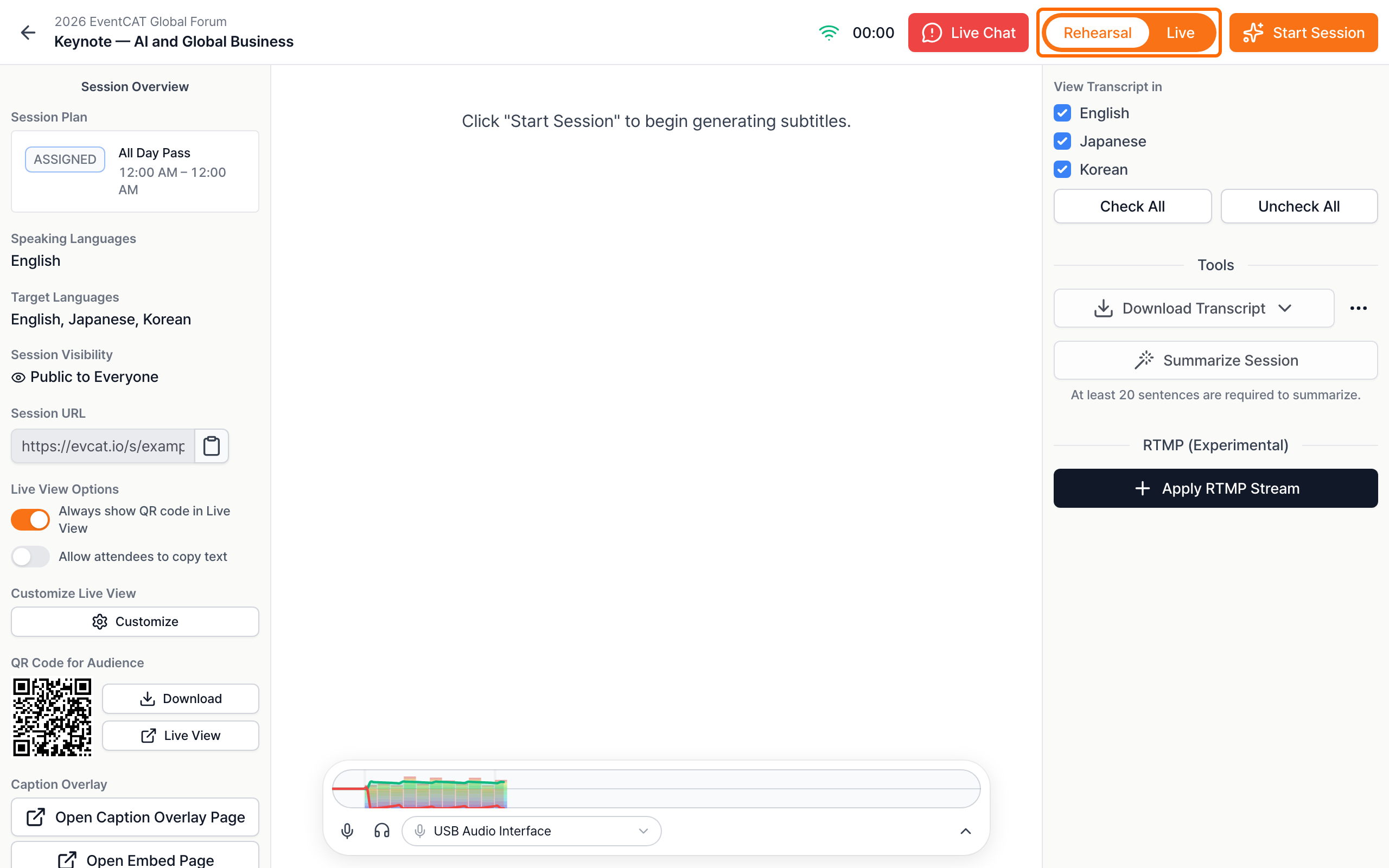
Before you start The Proceed to Rehearse button turns on only when pass coverage is 100% for every session (see Apply passes).
- At the top right of the controller, select Rehearsal mode and click Start Session.
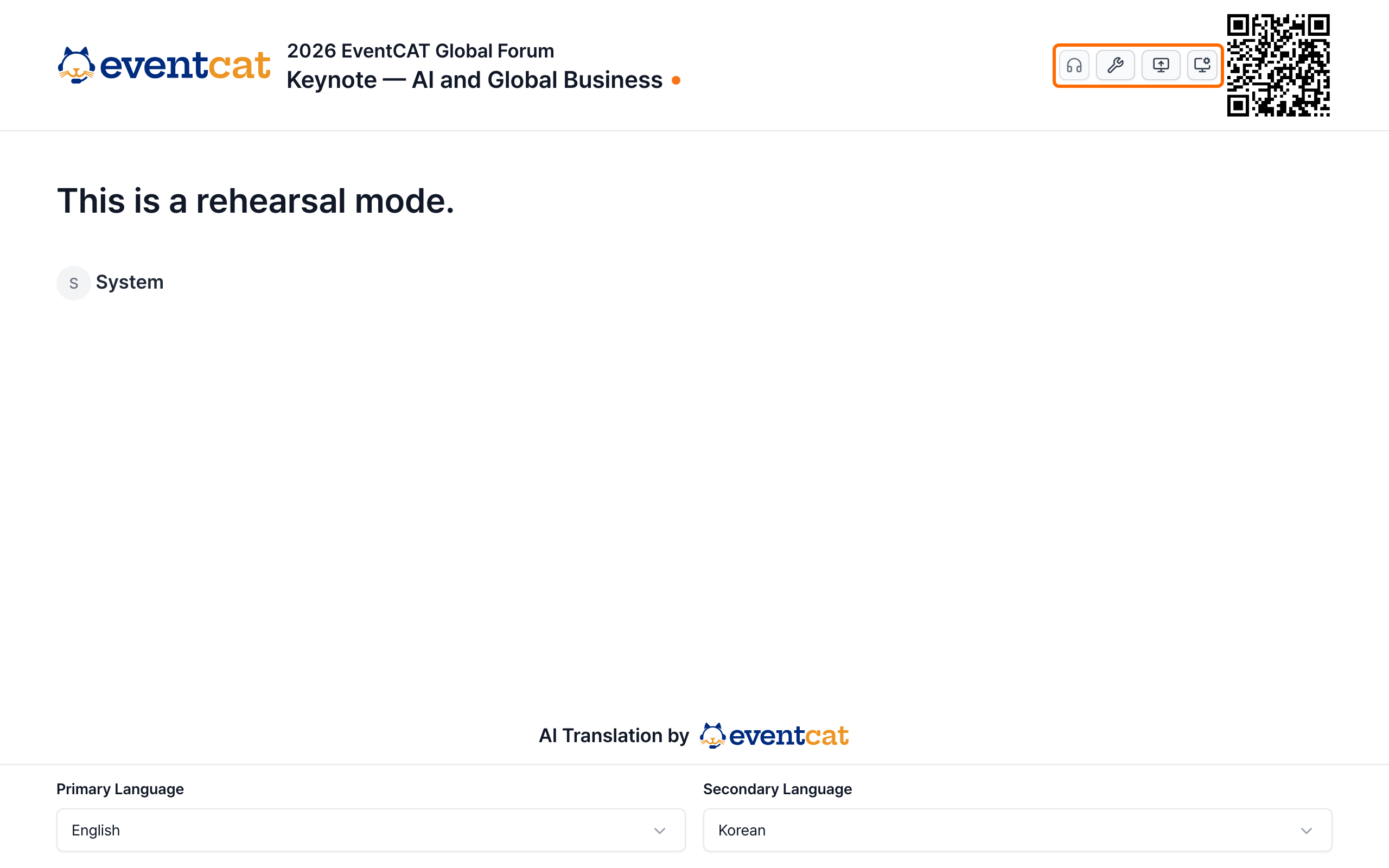
- The Live View shows a Rehearsal Mode mark, and the audio input bar graph is recorded in orange.
- Put the Live View on the venue screen ahead of time and check how the subtitles look on it.
Check at least these
- The green voice line rises when you speak through the real mic and mixer
- The spoken and subtitle languages are right, and glossary terms come out correctly
- Live View text size and position on the venue screen
- The backup laptop shows the same screen
When rehearsal is over
End the session, delete the transcript if needed (this can't be undone), then switch to Live. See Switch to Live and start the session.