
Using Dual Displays
Connect a laptop + external monitor (or projector) to utilize two screens.
Example Setup:

20th Anniversary International Symposium on the National Injury Surveillance System, Seoul National University Children’s Hospital
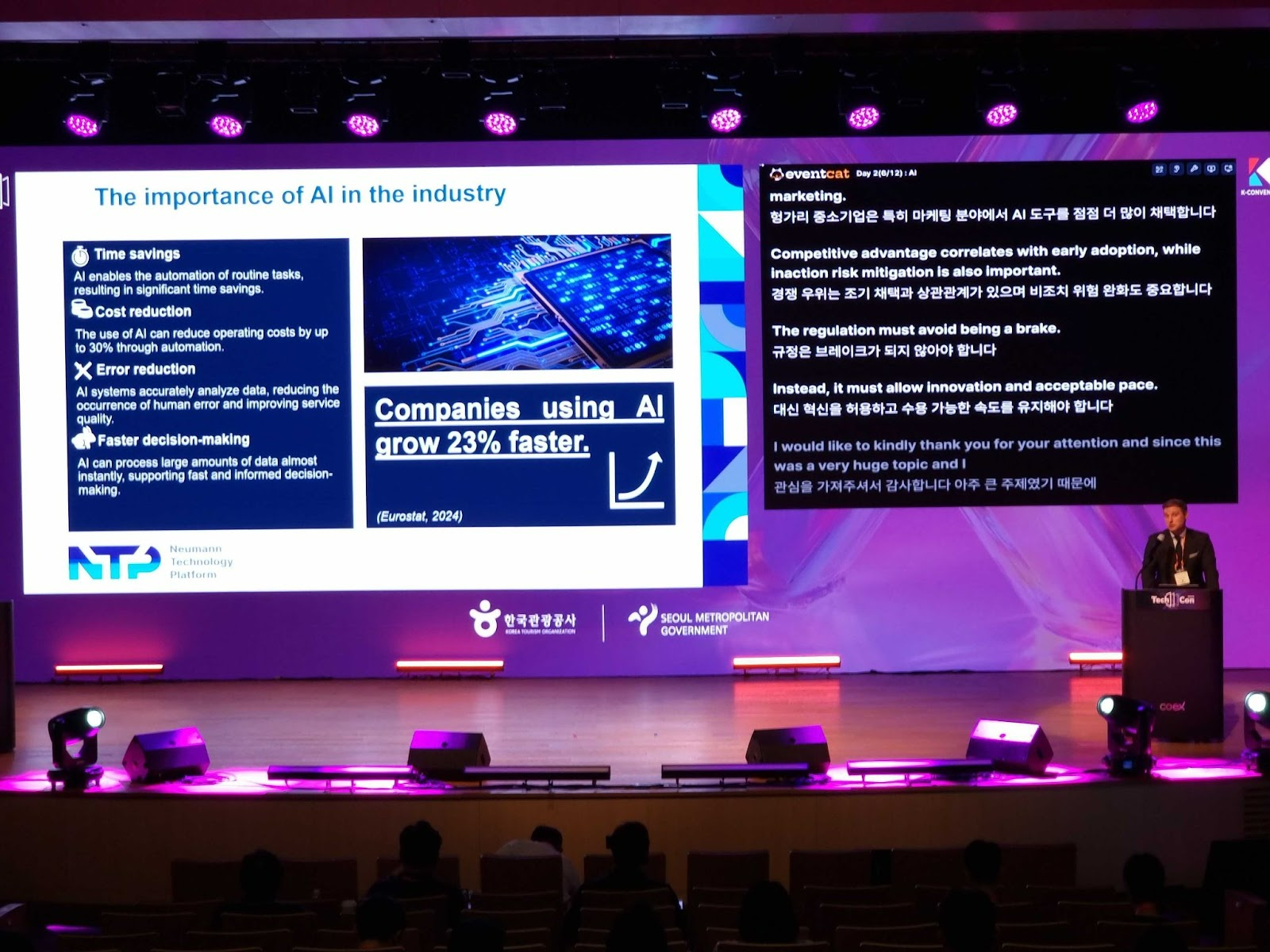
AI SEOUL 2025, COEX, Seoul
- Main Monitor (Laptop Screen): The presenter displays the presentation materials (PPT, Keynote, etc.).
- Secondary Monitor (External Display): Display EventCAT’s preview subtitle screen in full screen.
This allows the audience to view the presentation along with the real-time translated subtitles on the same screen.
2. Use screen splitting software or operating system features
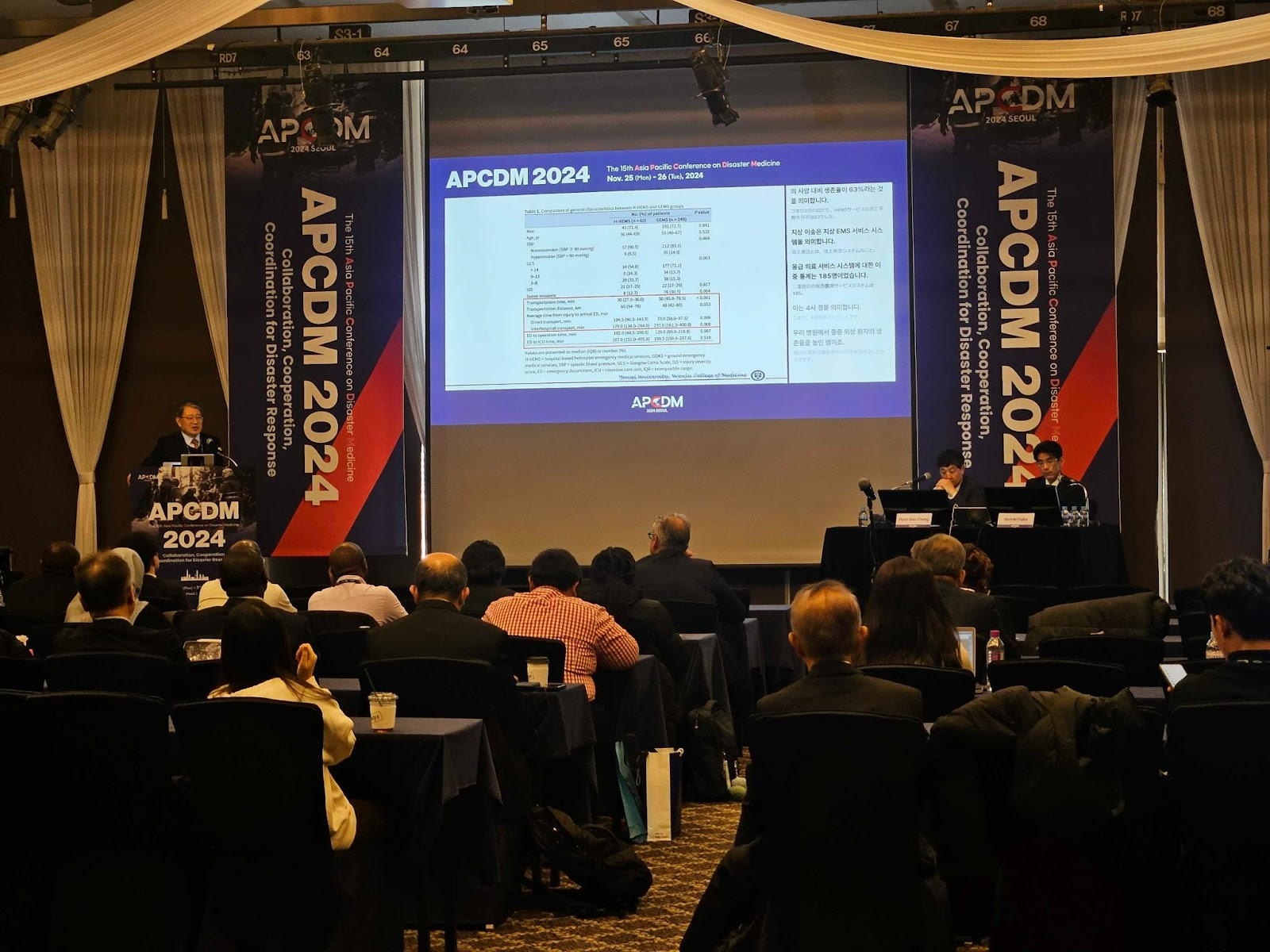
Asia Pacific Conference on Disaster Medicine (APCDM) 2024
Windows: Use Windows + left/right arrow keys to place the presentation screen and subtitle screen side by side.
macOS: Use the Split View feature to divide the screen and display both the presentation and the preview subtitle screen on one screen.
※ This method is useful when using only one screen and you need to show both the presentation materials and real-time translated subtitles simultaneously.
3. References where presentation materials and real-time translated subtitles were displayed together on the venue screen: