
Using Dual Displays
Connect a laptop + external monitor (or projector) to utilize two screens.
Example Setup:

20th Anniversary International Symposium on the National Injury Surveillance System, Seoul National University Children’s Hospital
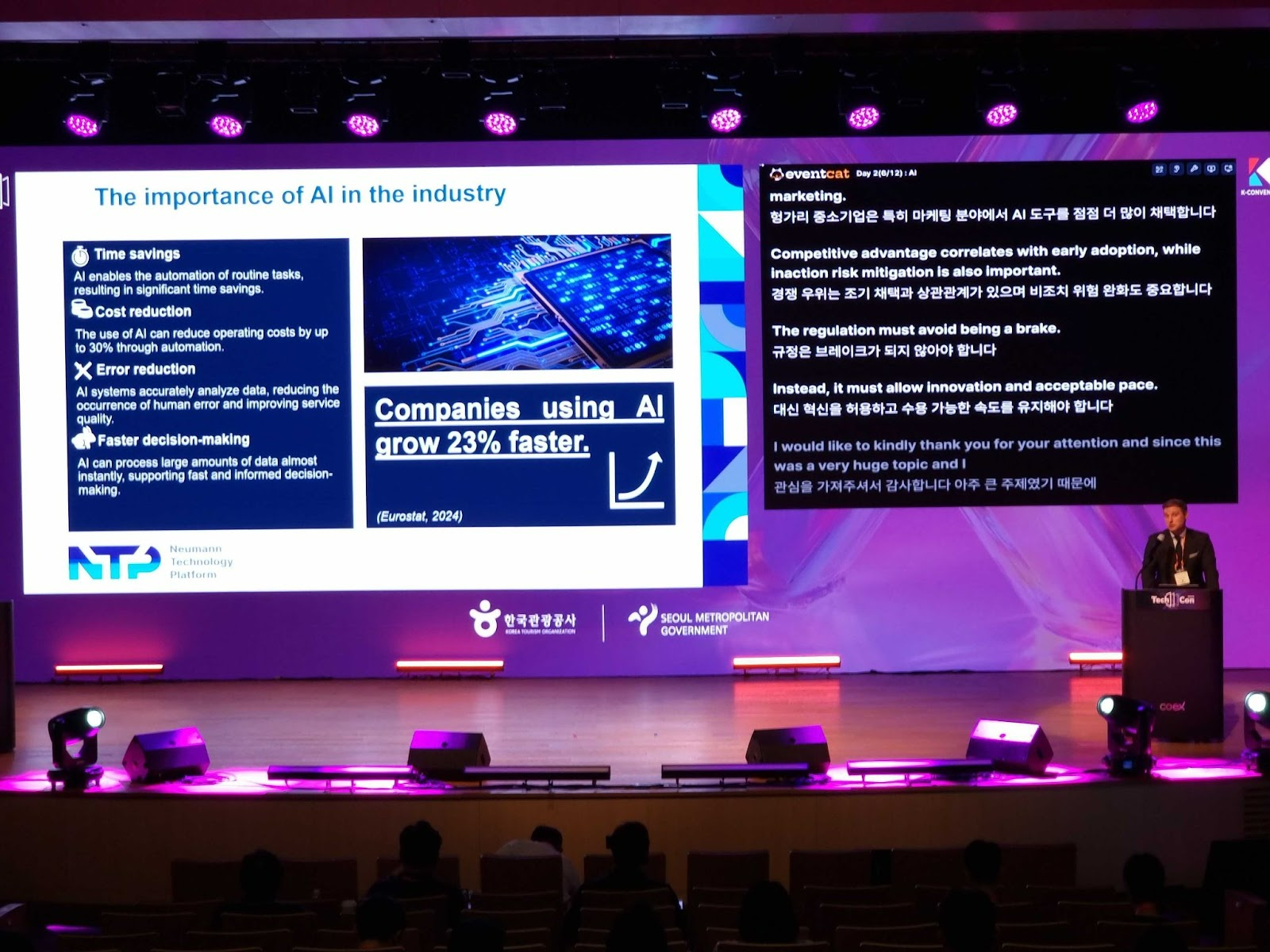
AI SEOUL 2025, COEX, Seoul
- Main Monitor (Laptop Screen): The presenter displays the presentation materials (PPT, Keynote, etc.).
- Secondary Monitor (External Display): Display EventCAT’s Live View in full screen.
This allows the audience to view the presentation along with the real-time translated subtitles on the same screen.
2. Use screen splitting software or operating system features
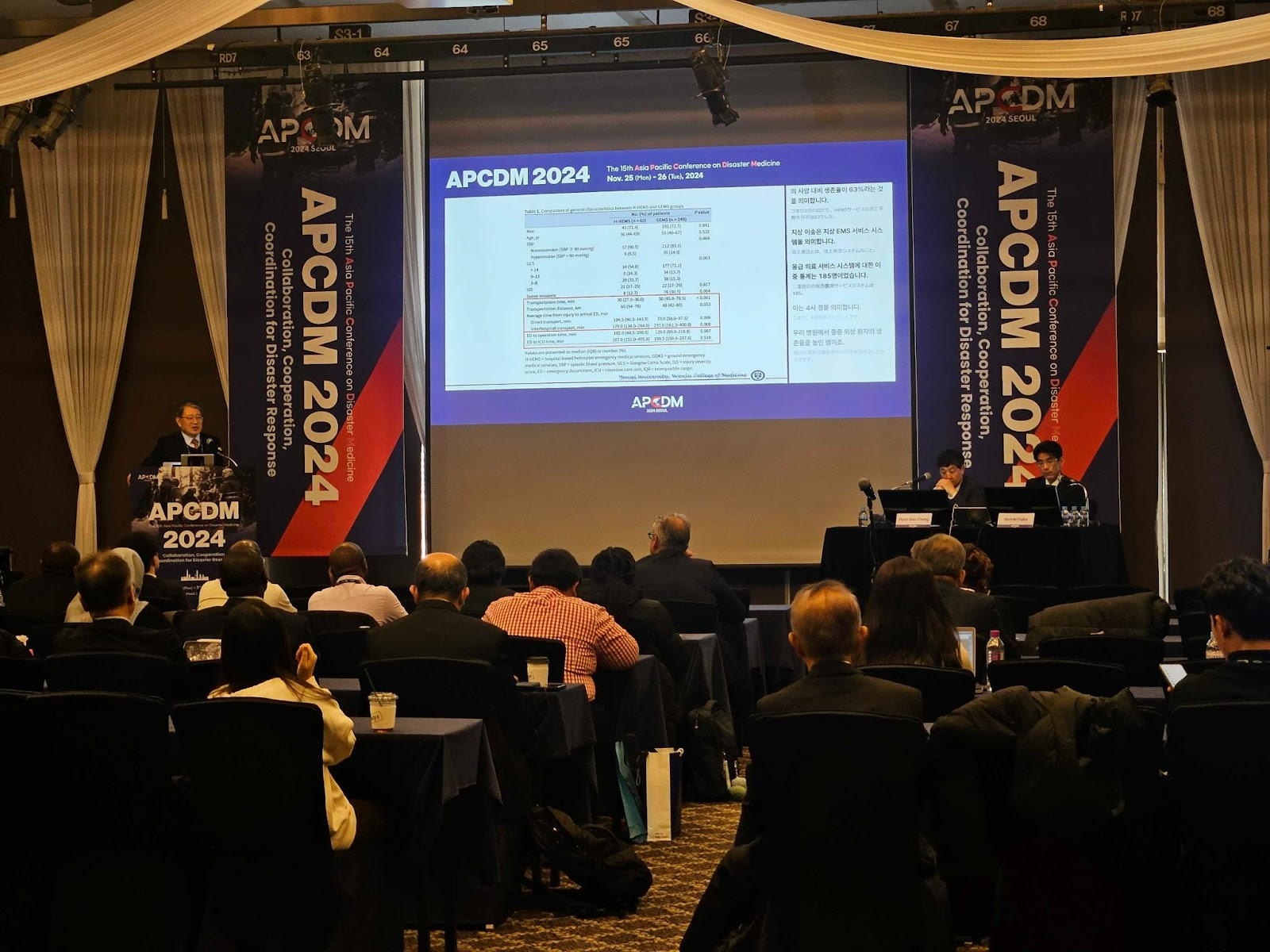
Asia Pacific Conference on Disaster Medicine (APCDM) 2024
Windows: Use Windows + left/right arrow keys to place the presentation screen and subtitle screen side by side.
macOS: Use the Split View feature to divide the screen and display both the presentation and the Live View on one screen.
※ This method is useful when using only one screen and you need to show both the presentation materials and real-time translated subtitles simultaneously.
Tips:
Turn on Presentation Mode in the Live View (F key) to hide the header and footer and show only the subtitles, in large text. (Desktop only)
With screen mirroring (duplicate mode), your controller also appears on the venue screen. Use it only briefly in an emergency when extended mode doesn't work, and normally connect the second display in extended mode.
3. References where presentation materials and real-time translated subtitles were displayed together on the venue screen: