
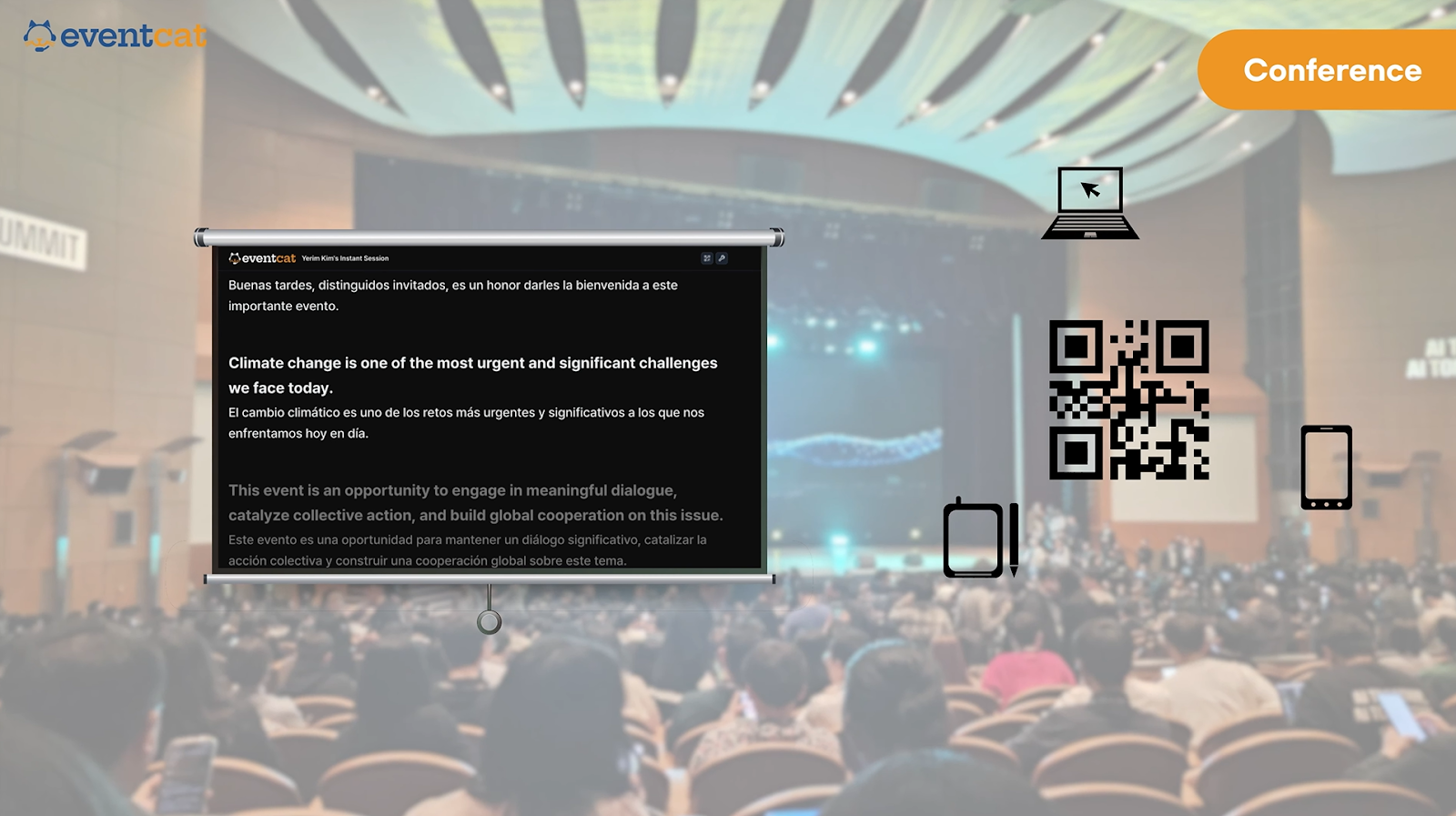
EventCAT provides four ways to deliver real-time subtitles to your audience.
Display the Live View on a venue screen
View on personal devices via QR code
Share the subtitle page via URL link
Stream translated subtitles simultaneously using the Caption Overlay feature
All settings for each method can be easily configured on the EventCAT Controller page.
Display the Live View on a Venue Screen
Q. How do I display the Live View on a venue screen?
• Click the Live View button: In the left panel of the Controller page, click Live View. The Live View opens in a new window.
• Set real-time subtitle languages: At the bottom of the Live View, you can select two languages to display — the Main Language and the Second Language. You can change them at any time.
• By displaying the Live View on the venue screen, the audience can view real-time subtitles.
References of events that used the Live View on-site:

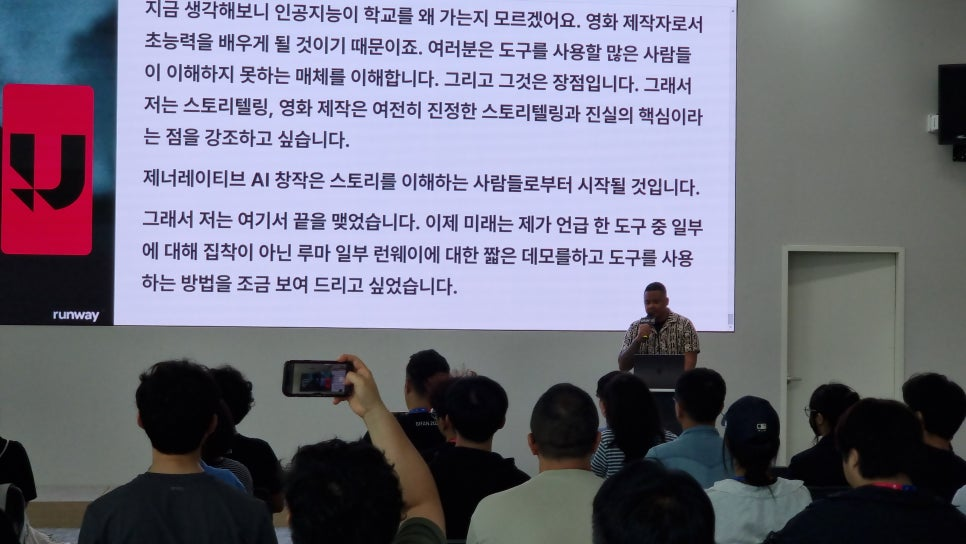
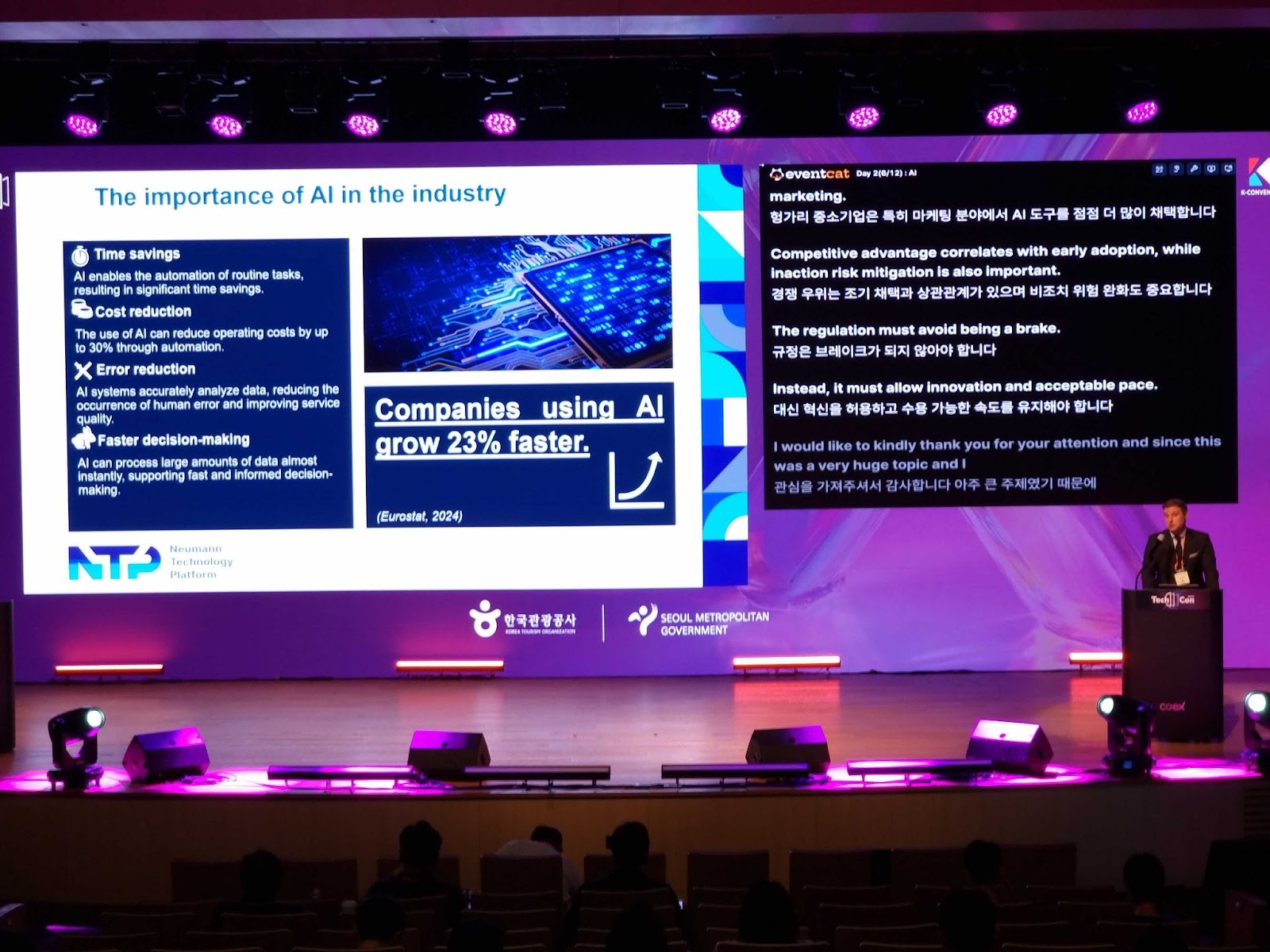
• Busan International AI Film Festival (BIAIF)
• Korean Society of Traumatology and Intensive Care
• Asia-Pacific Conference on Disaster Medicine (APCDM 2024)
• Gachon University Startup College (GSCS)
• POSTECH (Pohang University of Science and Technology) – Horizon Europe Workshop
• World Coffee Leaders Forum 2024
• SK AI Summit 2024
View on Personal Devices via QR Code
Q. How can attendees view real-time subtitles using a QR code?
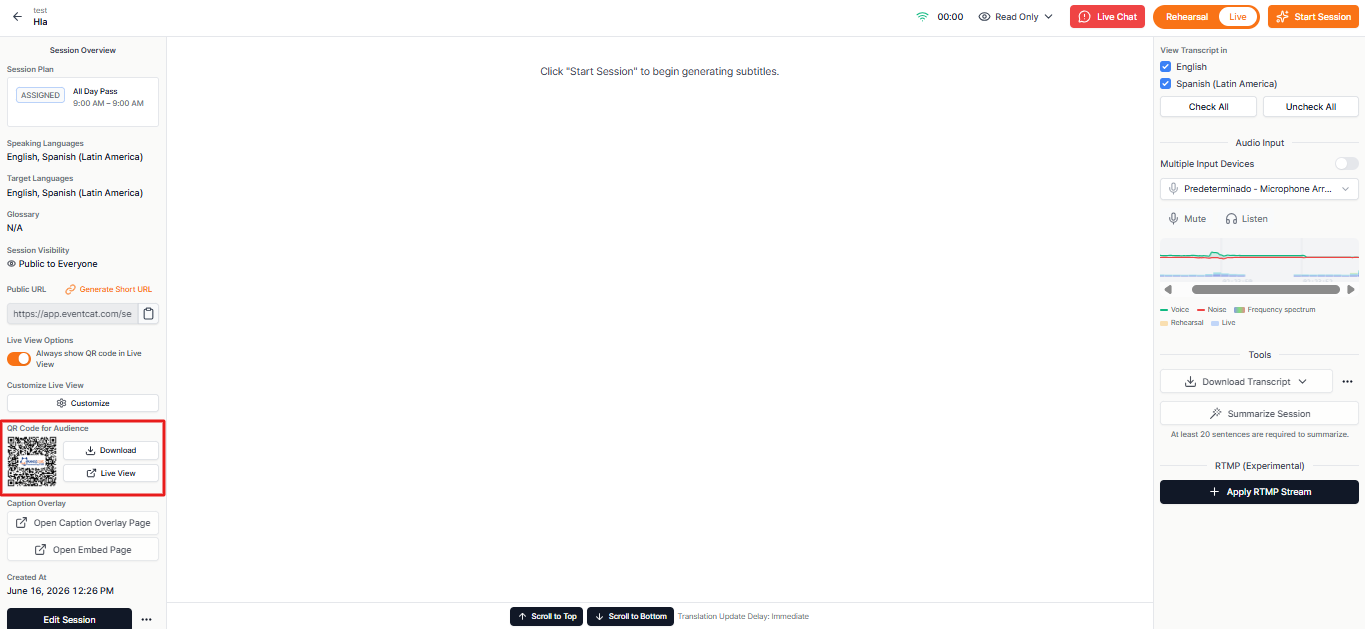
• Place the QR code on a venue screen or printed materials. Audience members can scan the QR code with their smartphones or tablets to view real-time subtitles in their preferred language.
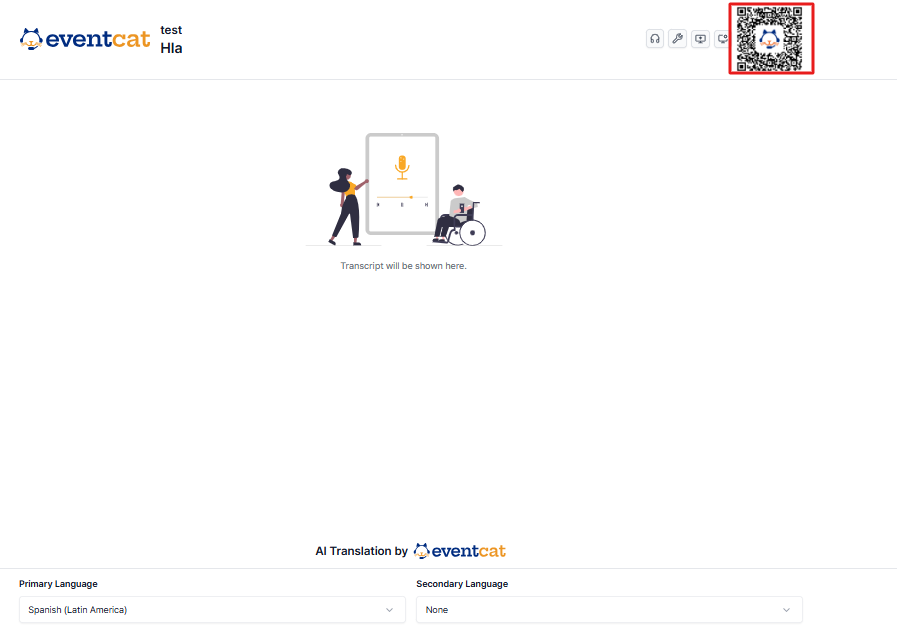
• There are two kinds of QR code. Download the room QR from the scheduler in the conference settings by clicking the QR icon next to the room name; it takes attendees to whichever session is running in that room. Download the session QR from QR Code for Audience in the left panel of the Controller; it links to that one session only.
• To show the QR code on the Live View as well, turn on Always show QR code in Live View under Live View Options.
Frequently Asked Question:
Q. Can real-time translated subtitles be viewed on multiple devices?
• Yes. Through the QR code, attendees can freely access real-time translated subtitles on smartphones, tablets, laptops, and all personal devices.
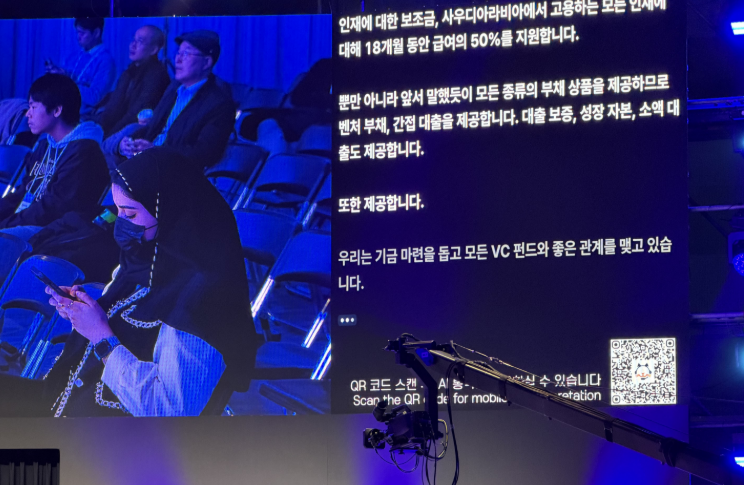
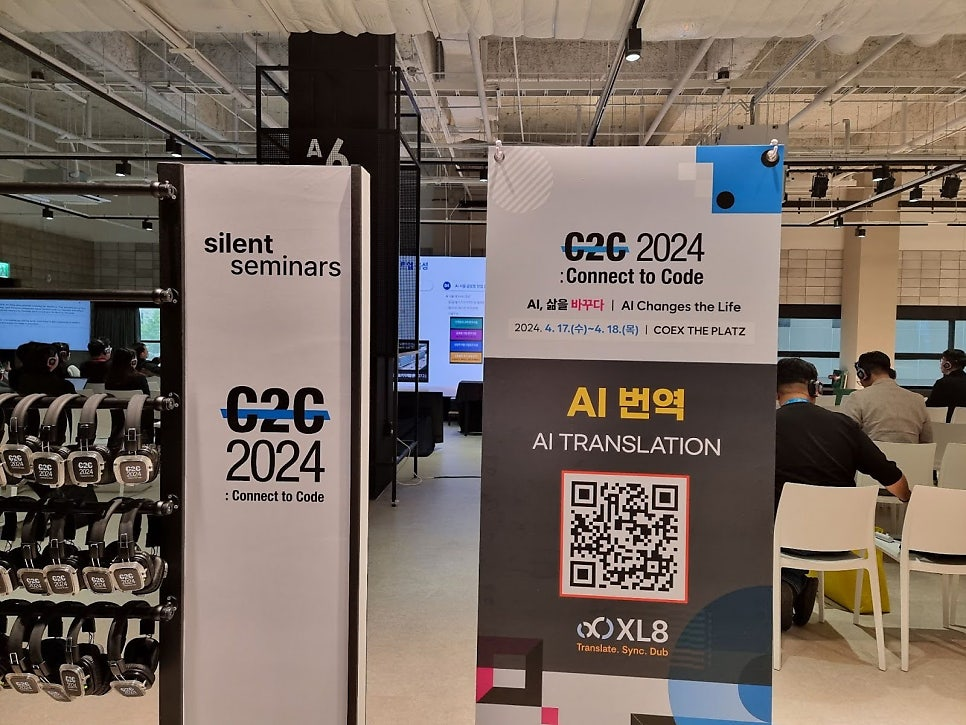
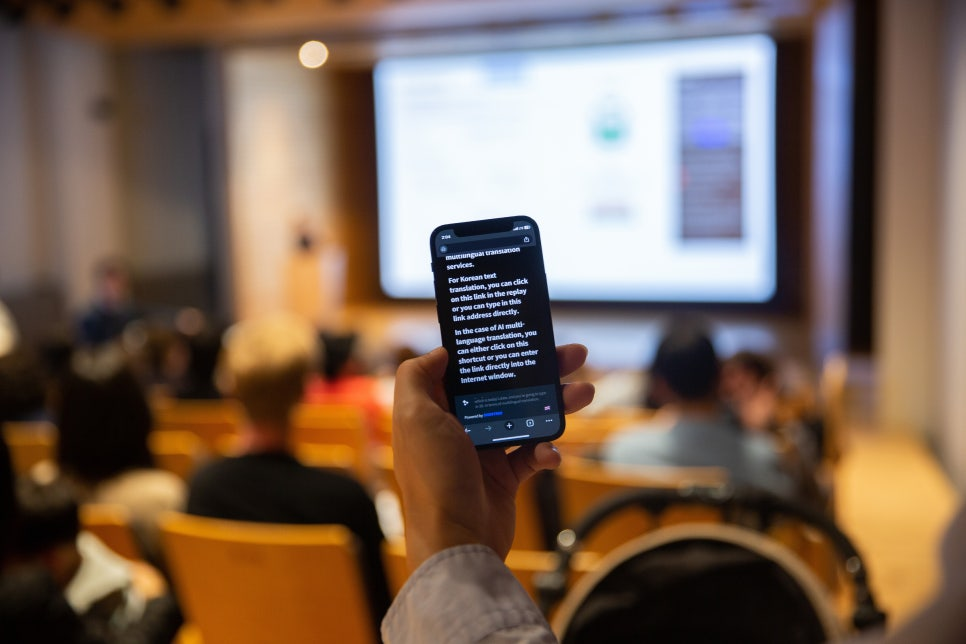
References of events that provided subtitles via QR code:
• ComeUp 2025
• TEDxSeoul
• Connect to Code 2024
• High Output Club – Lecture by former Meta PM & “Retro” app founder Nathan Sharp
Share the Real-Time Subtitle Page via URL
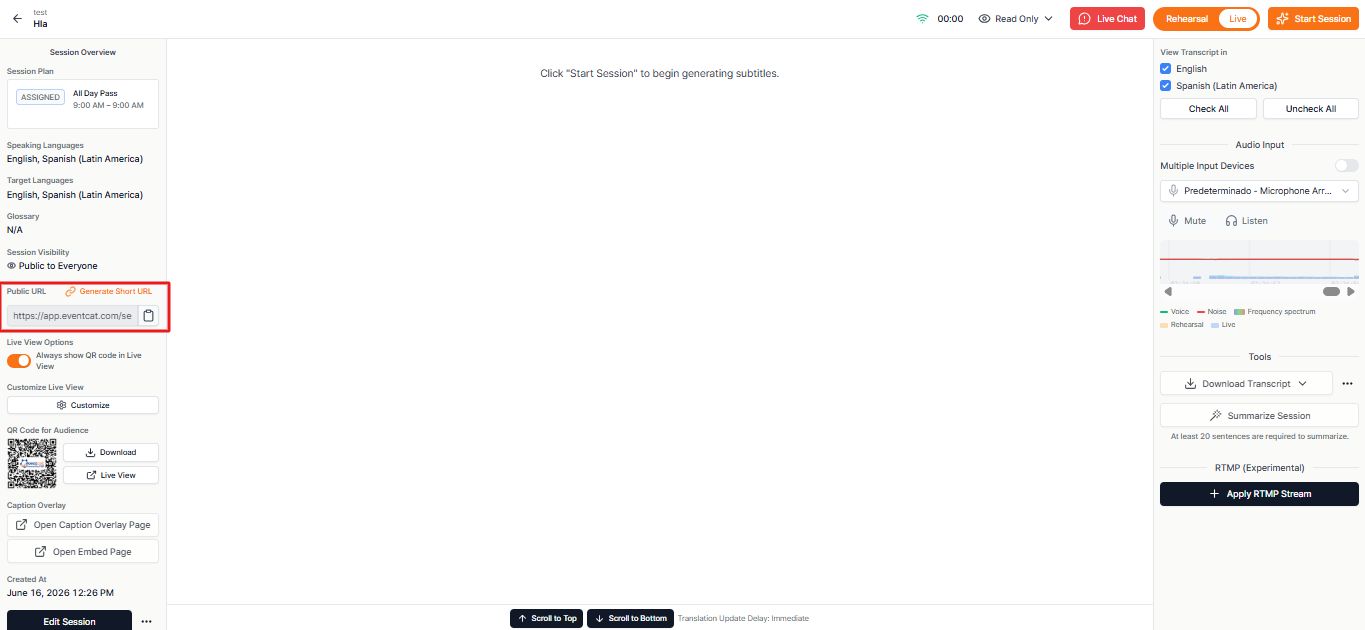
• Copy the URL from the Controller page and share it via YouTube, open chat rooms, websites, or other platforms.
• Audience members can access the real-time subtitle page through the URL and select their preferred language individually.
Stream Translated Subtitles via Caption Overlay
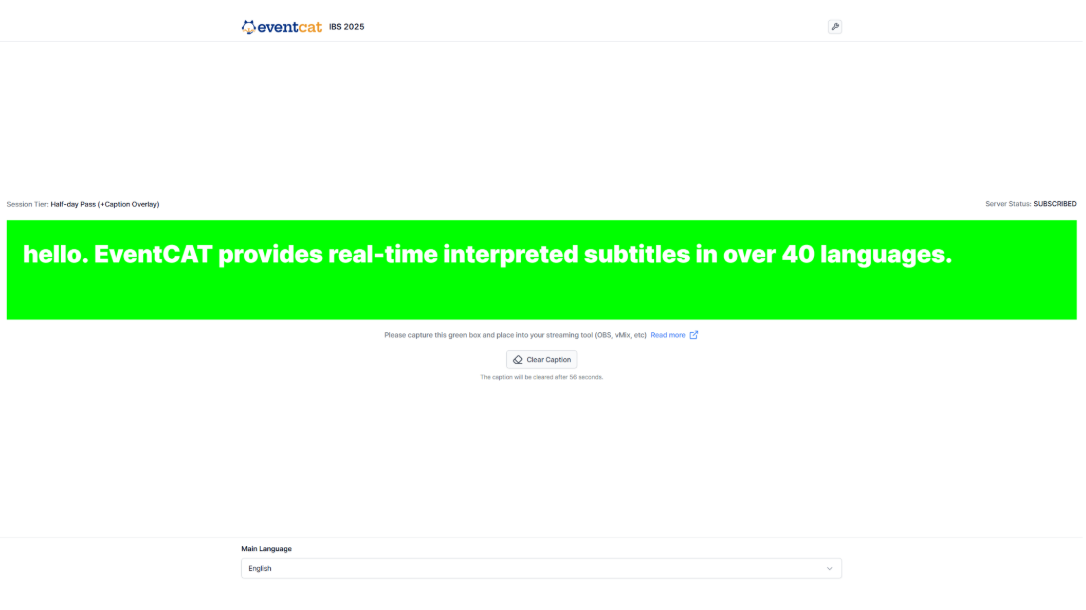
• Using the Caption Overlay feature, you can directly overlay real-time subtitles onto live streaming platforms such as YouTube or OBS.
• Caption Overlay is included in the All-day MAX Pass. In the session Controller, click Open Caption Overlay Page. For details, see Lay subtitles over video — Caption overlay.
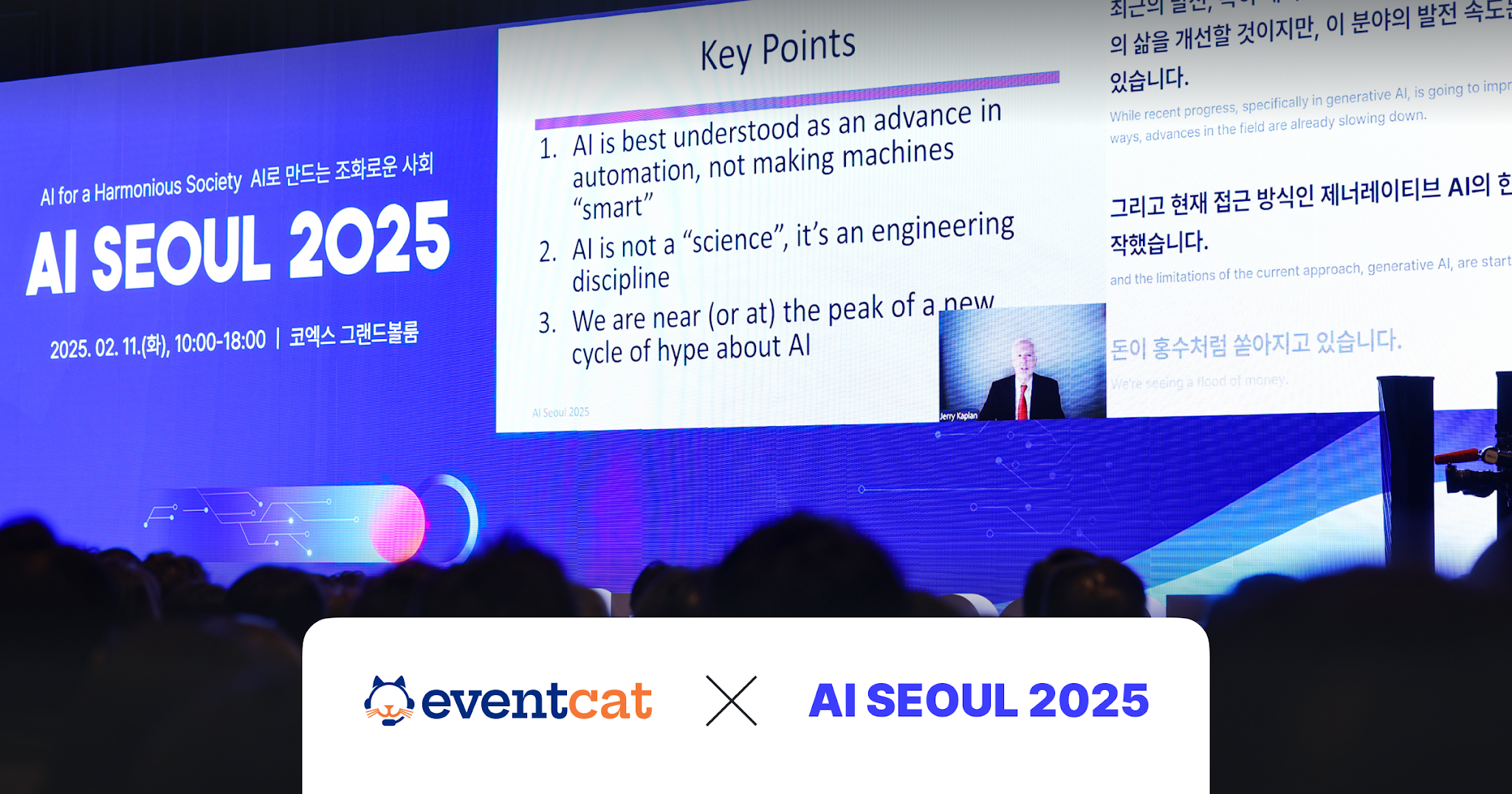
References of events that used caption overlay for simultaneous online and offline subtitle streaming:
Ready to elevate your event experience?
Want to learn more or get started with EventCAT for your next conference? Contact us today and let us help you provide seamless translation solutions at your next event.