
CASE 1 · Showing subtitles on a screen
CASE 1 · Showing subtitles on a screen
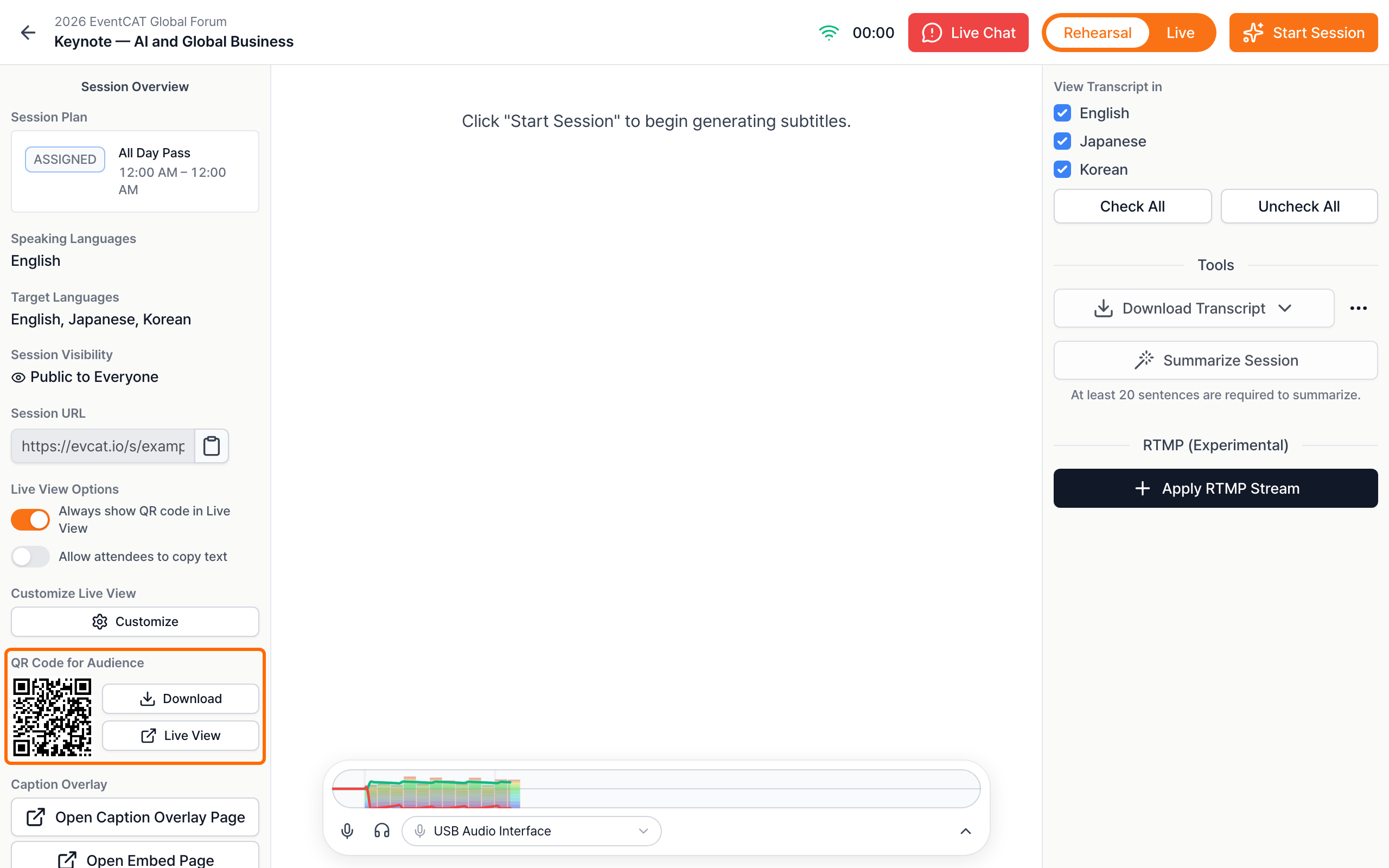
- In the controller, click Live View to open it in a new window.
- At the bottom of the Live View, choose the Primary Language and Secondary Language.
- Set your display to extended mode and drag the Live View window onto the external screen.
- Switch to full screen with F11 so attendees can follow the real-time translated subtitles.
Note For readability, one screen shows subtitles in up to two languages. Side-by-side and stacked split layouts are Experimental. See Split the Live View screen.