
CASE 4 · Broadcasting with OBS
Connect subtitles as a browser source
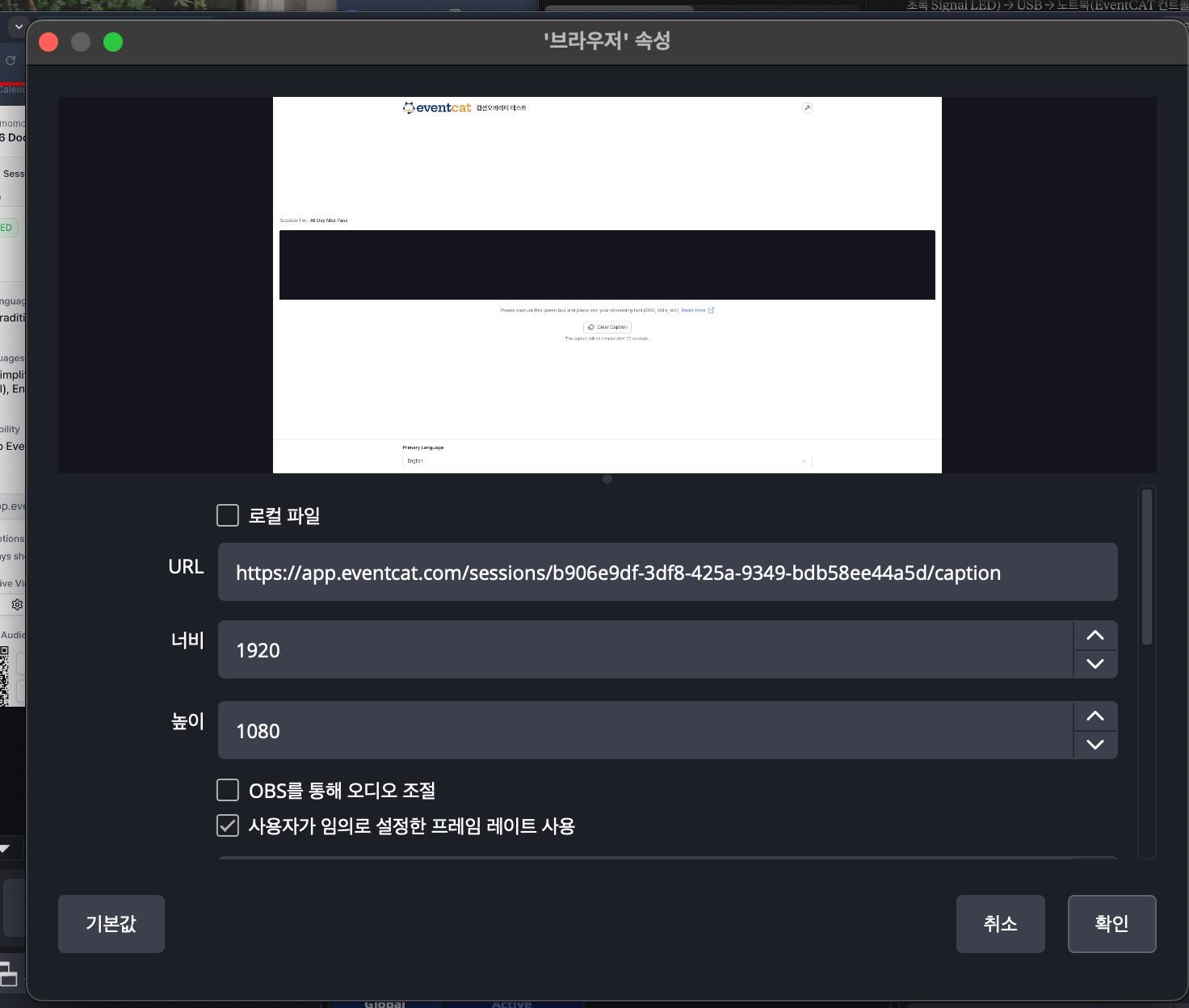
- In the EventCAT controller, open the caption overlay page and copy the link.
- In OBS, open the Browser Source properties window and paste the link into the URL field.
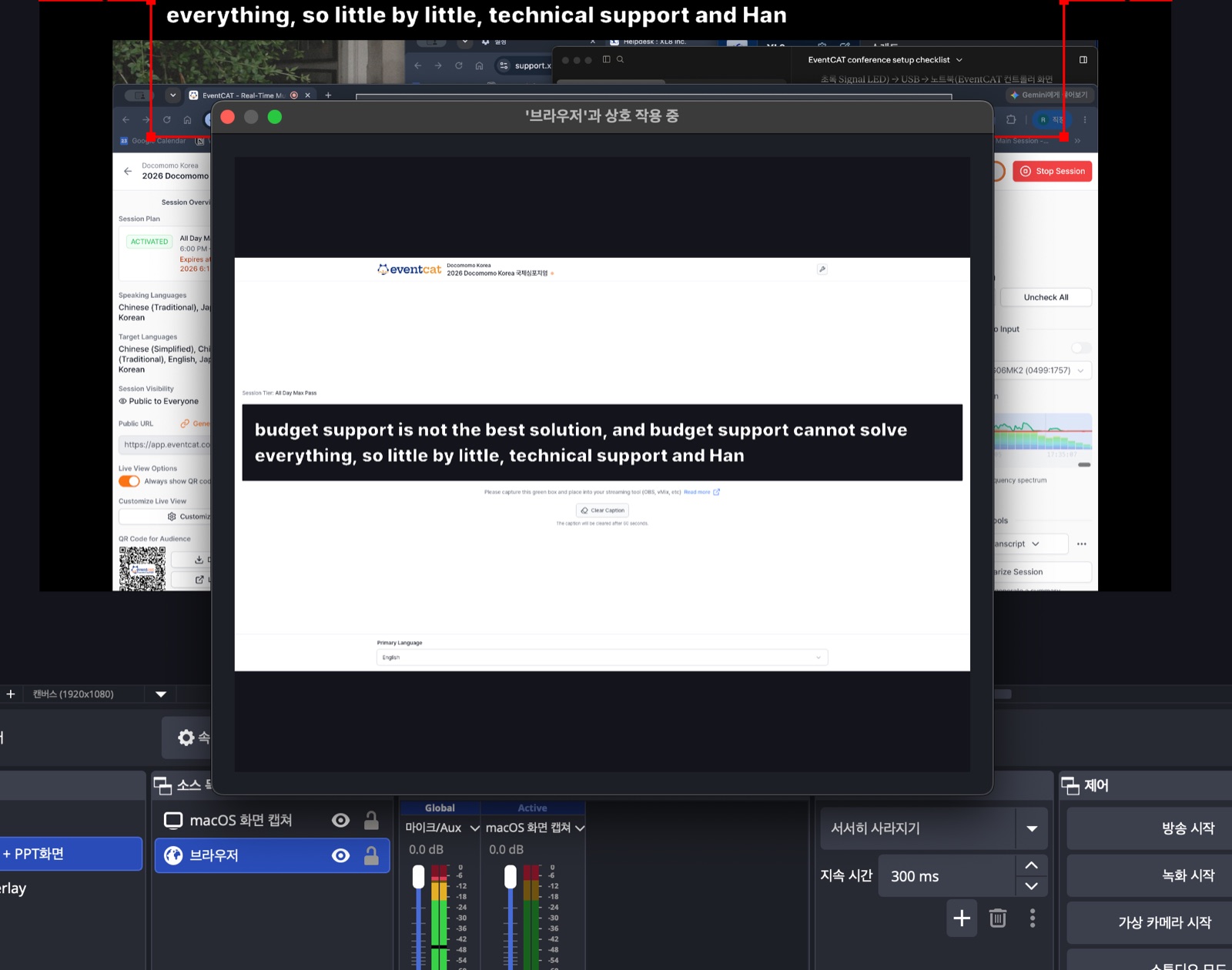
- To change the language, right-click the browser source → Interact → click the bottom of the window, then set the language with the keyboard.
Build the scene and broadcast
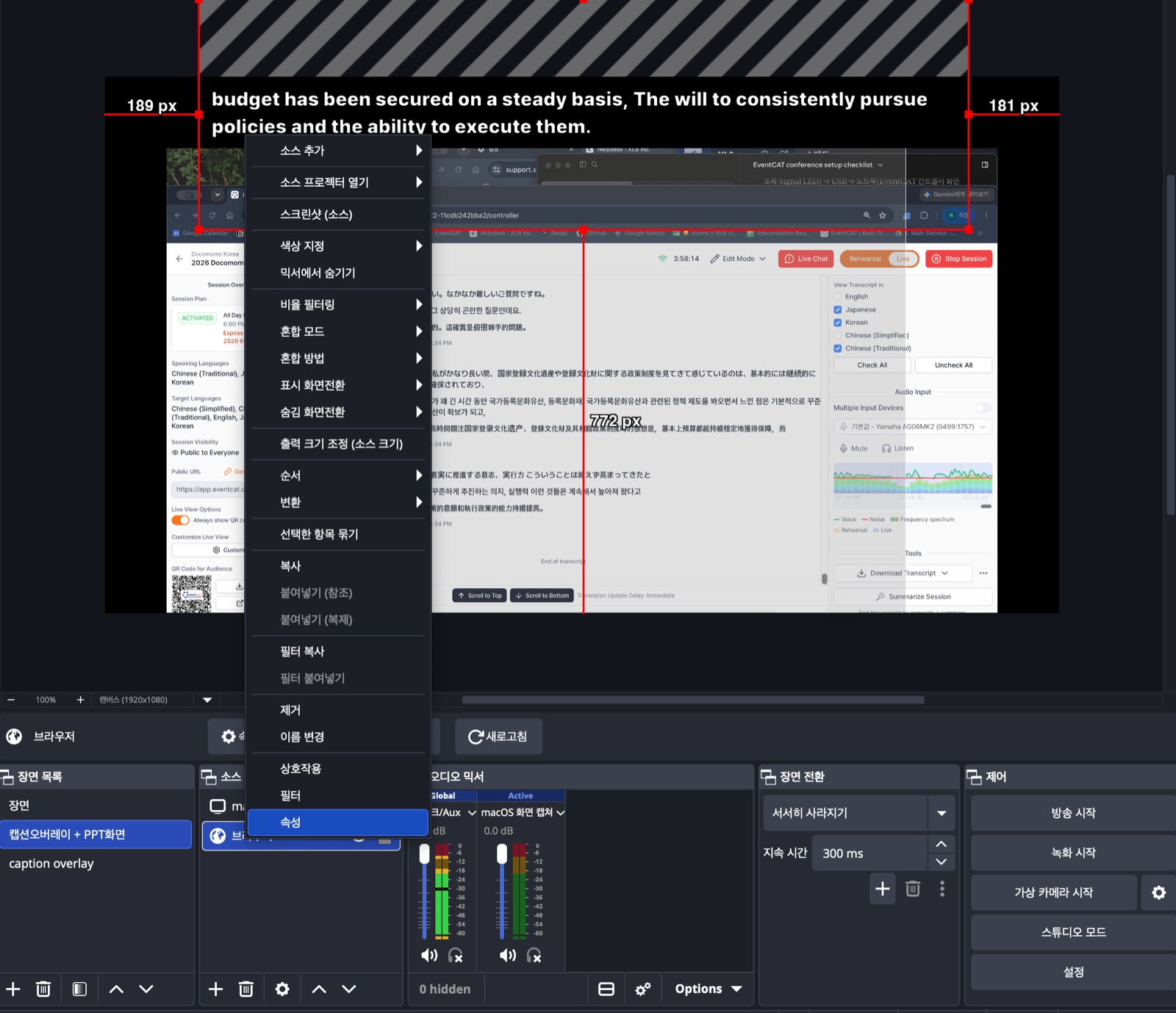
Scene layout — EventCAT + caption overlay
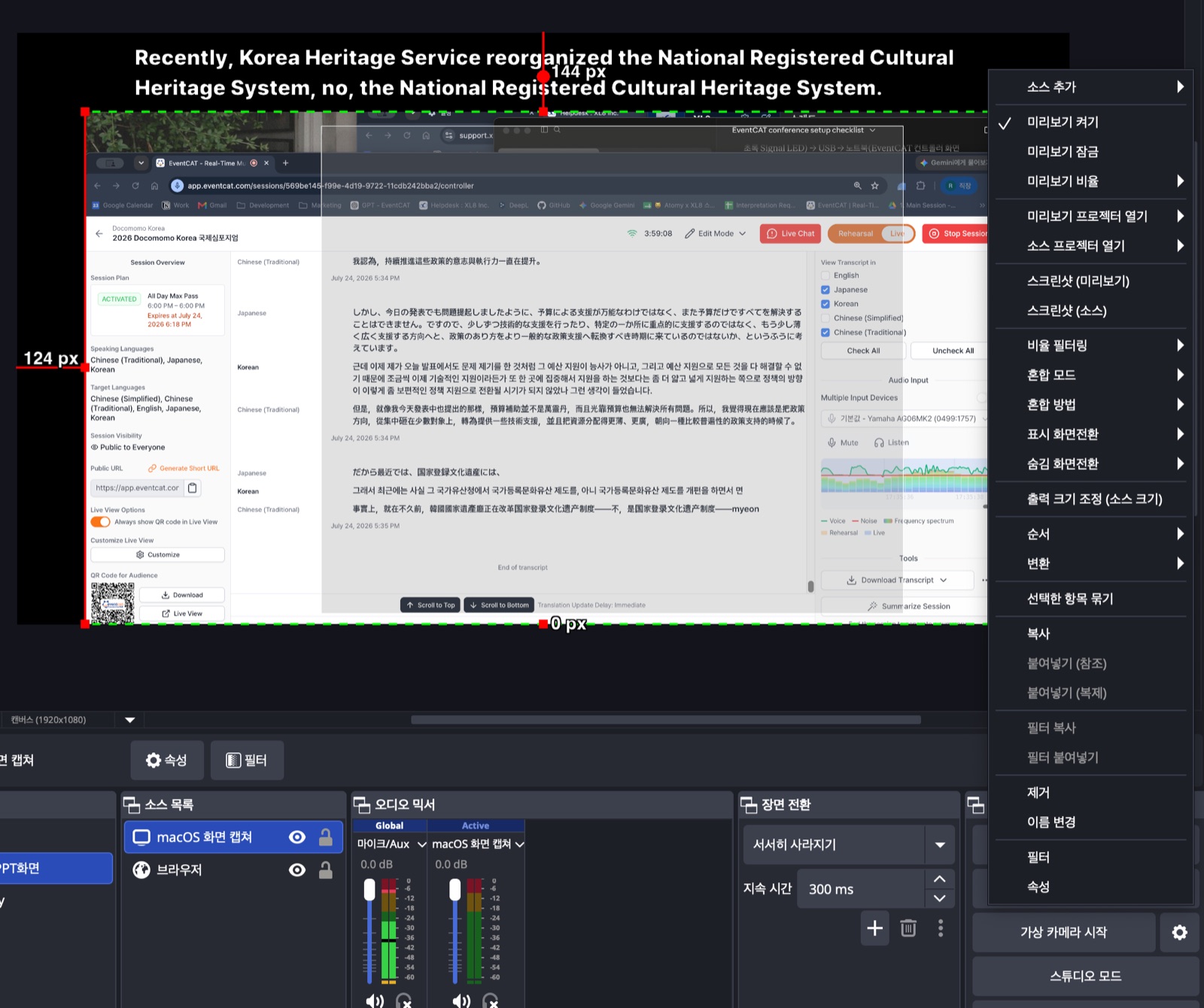
Top: subtitle browser source cropped to two lines / Bottom: display capture of the presentation (PPT, PDF, etc.)
- Check that both sources are visible in the scene.
- Click Preview to check the final screen combining subtitles and presentation.
- Move the preview to the extended display and output it full screen. Check that the venue screen shows both subtitles and the presentation.
Run the slide show in a window
CASE 4 · When PPT covers the screen
A PowerPoint slide show runs full screen by default and covers the OBS scene. Run the slide show in window mode so you can layer it with other sources in OBS.
PowerPoint
- Open Slide Show tab → Set Up Slide Show.
- Under Show type, select Browsed by an individual (window). (The name varies by version.)
- When you start the slide show, it opens in a regular window.
Keynote
Choose Play → Play Slideshow in Window to run it in window mode the same way.
Capture it in OBS
- Instead of Display Capture, add a Window Capture source and select the PowerPoint window running in window mode.
- Layer it freely with the subtitle browser source. The slide show doesn't cover the whole screen, so your scene layout stays intact.
Tip In window mode, the presenter can still advance slides by clicking or using the keyboard. During rehearsal, resize the window to fit the canvas in advance.