
For all setups · When you need branding
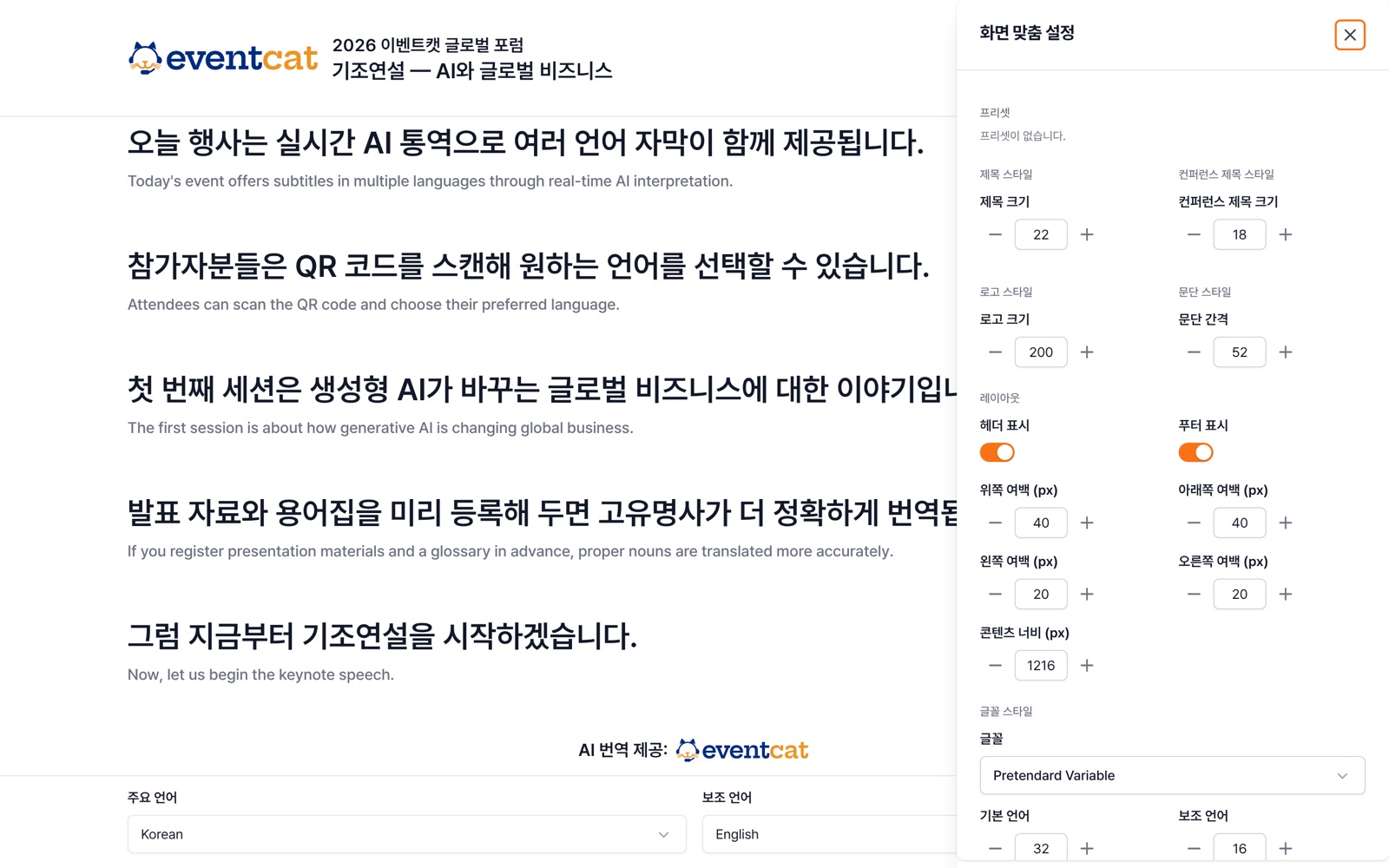
When you open the Live View while signed in, a Display options (⚙) button appears at the top right. Use it to fine-tune the screen for the venue display.
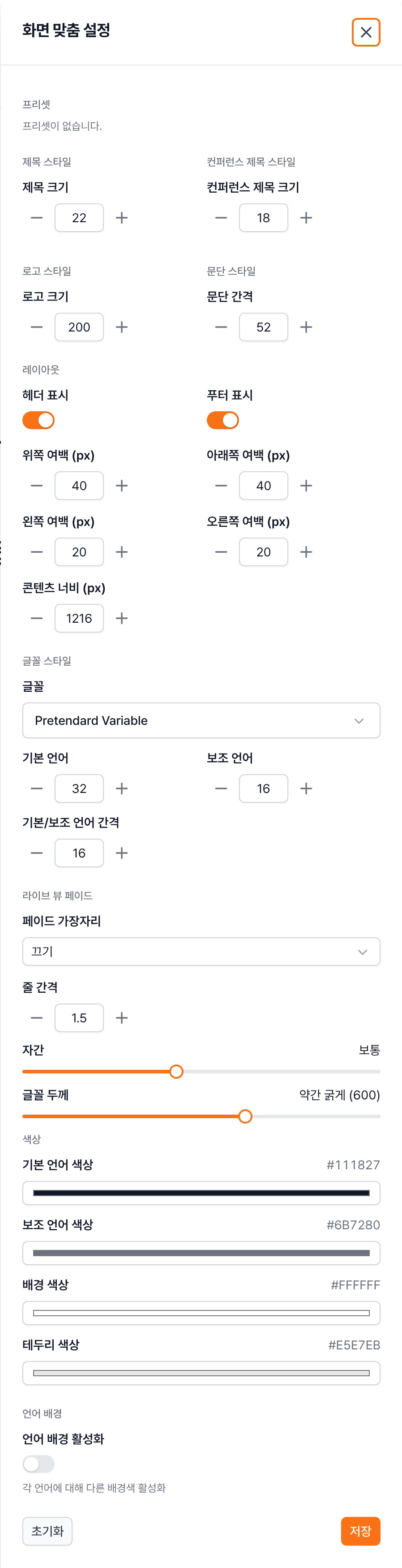
Style
Title and conference title size, logo size, paragraph spacing
Layout
Show header and footer, top, bottom, left and right margins, and content width (px). For narrow screens like vertical LEDs, fit the subtitle area with content width.
Font
Font, main and secondary language size, main/secondary language spacing (the gap between source and translation), line height, letter spacing, font weight
Fade · Colors
Live View fade that softens the edges, colors for the main and secondary languages, background and border, and background color per language
Tip When you're done, save it as a preset (requires a day pass). Hidden headers and footers reappear when you hover near the edge of the screen.
The left panel is Screen customization. From the top, it runs Presets → Style → Layout → Font → Fade → Colors, with Reset / Save buttons at the bottom.
You can also change the logo and font in the controller's Customize (p.16).