During the event · When subtitles go out wrong
Experimental This feature is turned on for some accounts only. To use it, contact us.
① Choose a display mode
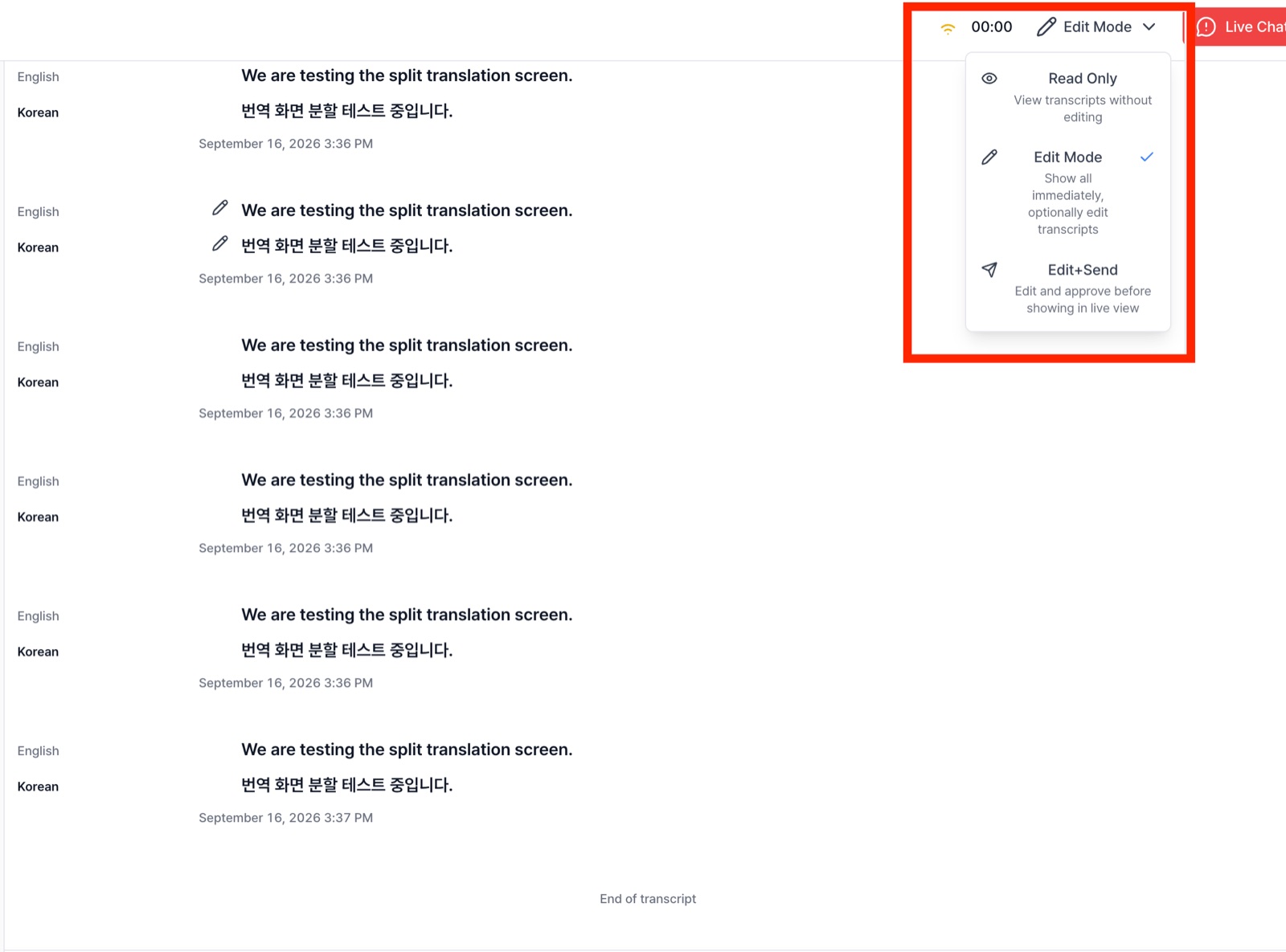
Use the display mode menu at the top right of the controller to change who can edit subtitles. You can fix misrecognized sentences, such as names, company names and numbers, right on site.
Read Only
View subtitles only. No editing.
Edit Mode
Recognized subtitles appear in the Live View right away, and you fix only the sentences that need it.
Edit+Send
Only sentences the operator has reviewed and approved appear in the Live View.
Check With Edit+Send, the audience doesn't see subtitles until you approve them. In sessions with a lot of speech, subtitles can fall behind, so we recommend Edit Mode.
② Fix a sentence
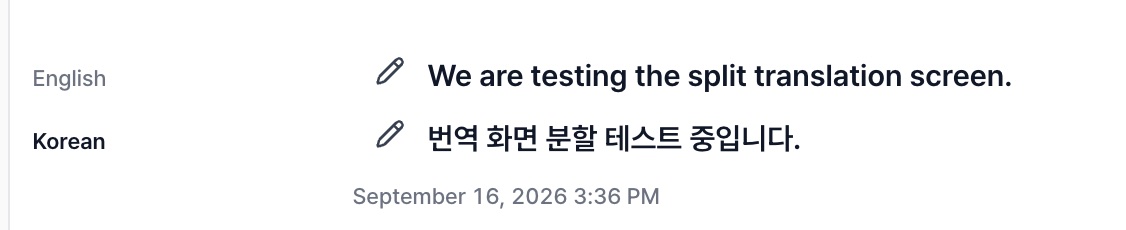
- Hover over the sentence you want to fix, and a pencil icon appears on the left.
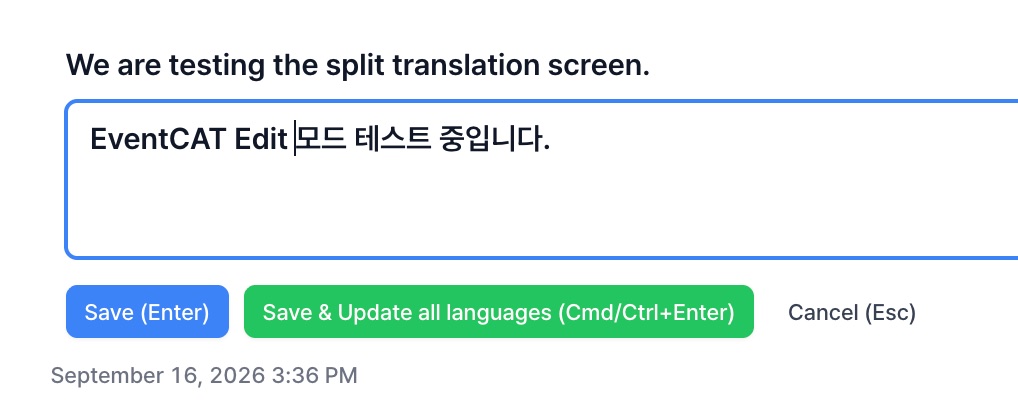
- Click the pencil icon to open the edit box and make your changes.
- Save (Enter) — Updates the subtitle in that language only.
- Save & Update all languages (Cmd/Ctrl+Enter) — Regenerates the translations in the other languages based on your edited sentence.
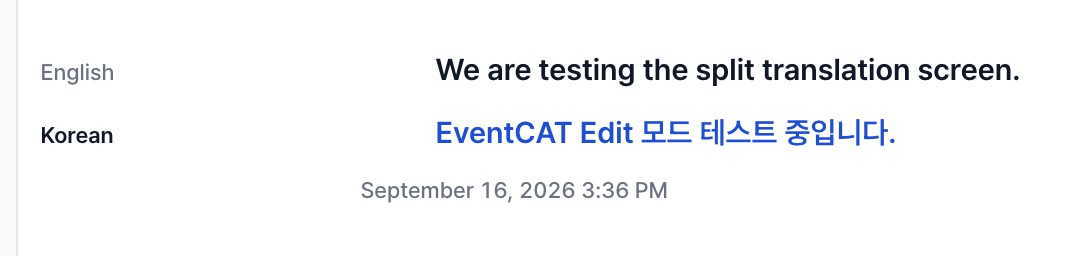
Note Your edits show up in the transcript and Live View right away.