During the event · When sentences run long
Experimental This feature is turned on for some accounts only. To use it, contact us.
① Choose a layout
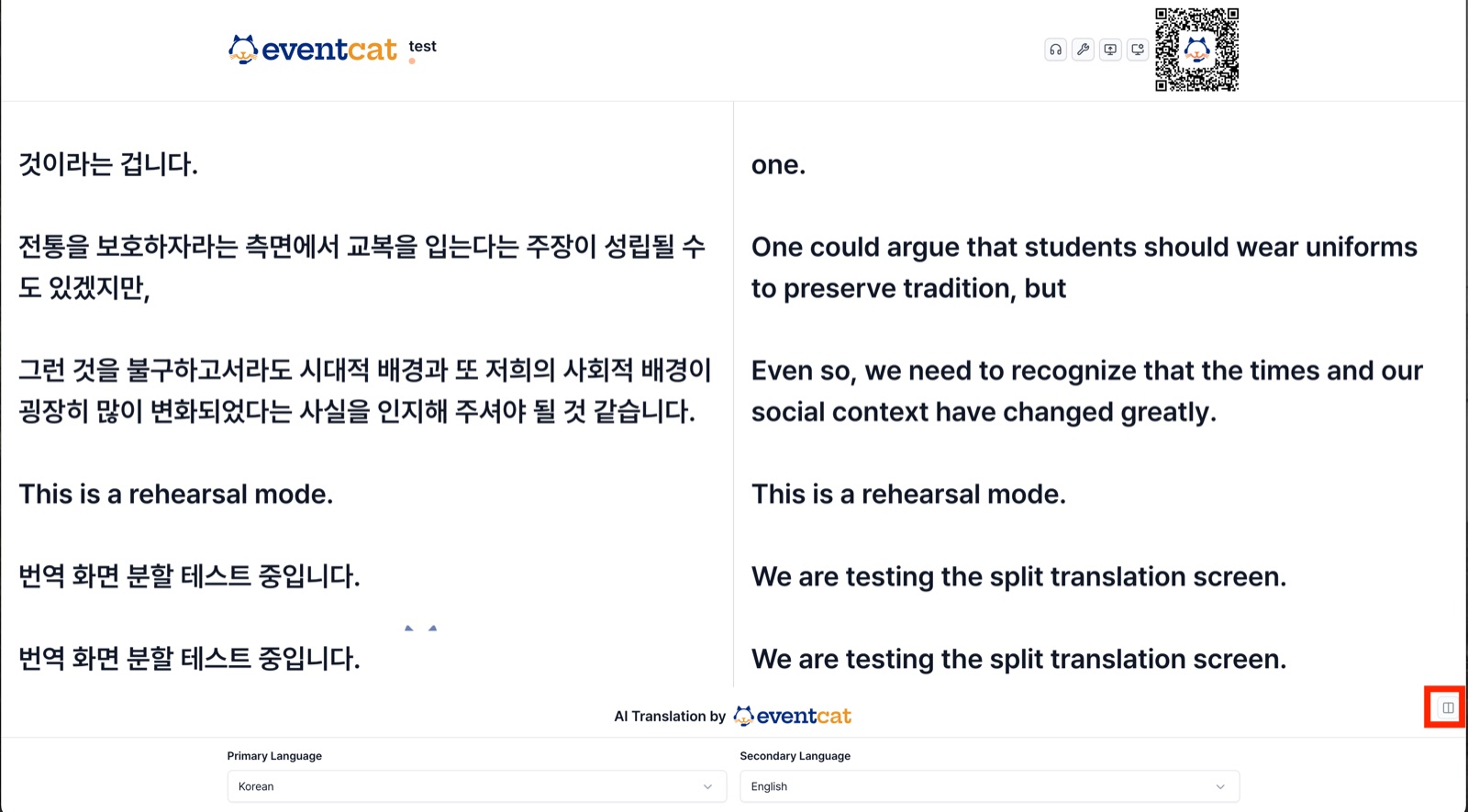
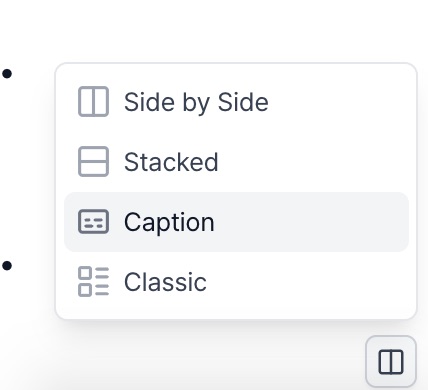
Use the layout button at the bottom right of the Live View to change how subtitles are arranged. Splitting the screen gives each language a fixed area, so fewer sentences get cut off when the text scrolls.
Side by Side
Left/right split — main language on the left, secondary language on the right. Good for wide screens.
Stacked
Top/bottom split — for tall screens, or when the two languages differ a lot in text length.
Caption
Subtitles only at the bottom of the screen — for laying over presentation slides or video.
Classic
The original layout — each sentence is followed by its translation below.
② Apply it and set languages
- Click the layout button at the bottom right of the Live View.
- Pick the one of the four layouts that fits your event screen.
- Use Primary Language · Secondary Language at the bottom to set the language for each area.
Tip For pairs where the translation takes more lines, like Korean → English, Side by Side is easier to read.