Get to know the operator screen
Open the controller
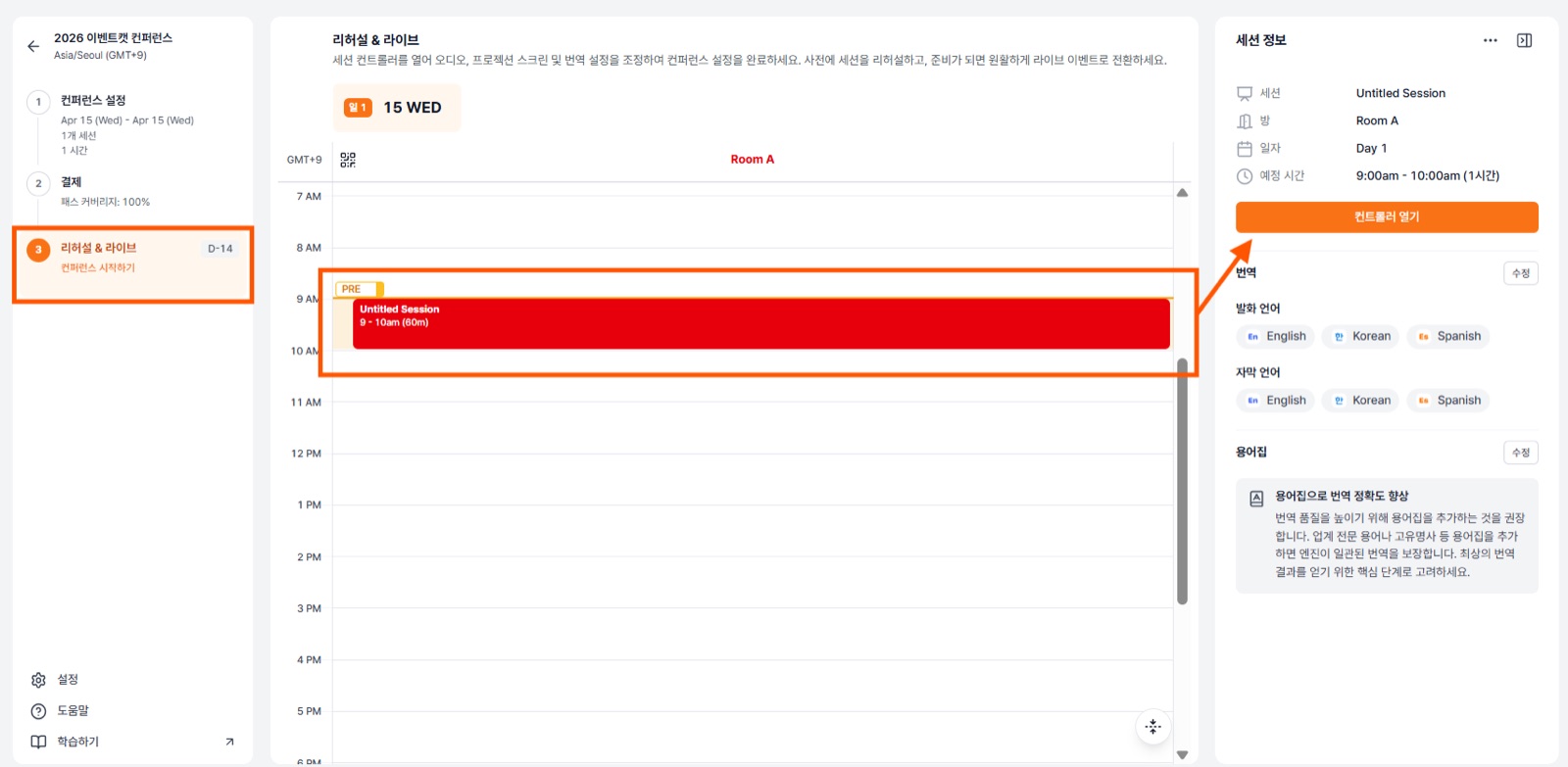
- Once pass coverage reaches 100%, go to 3. Rehearsal & Live in the step menu on the left.
- Select a session on the timeline to open the Session Info panel on the right. Check the session name, room, date, scheduled time, and spoken and subtitle languages.
- Click Open Controller.
Tip If your glossary is empty, we recommend adding terms at this step. Registering technical terms and proper nouns keeps the engine's translations consistent.
Controller overview
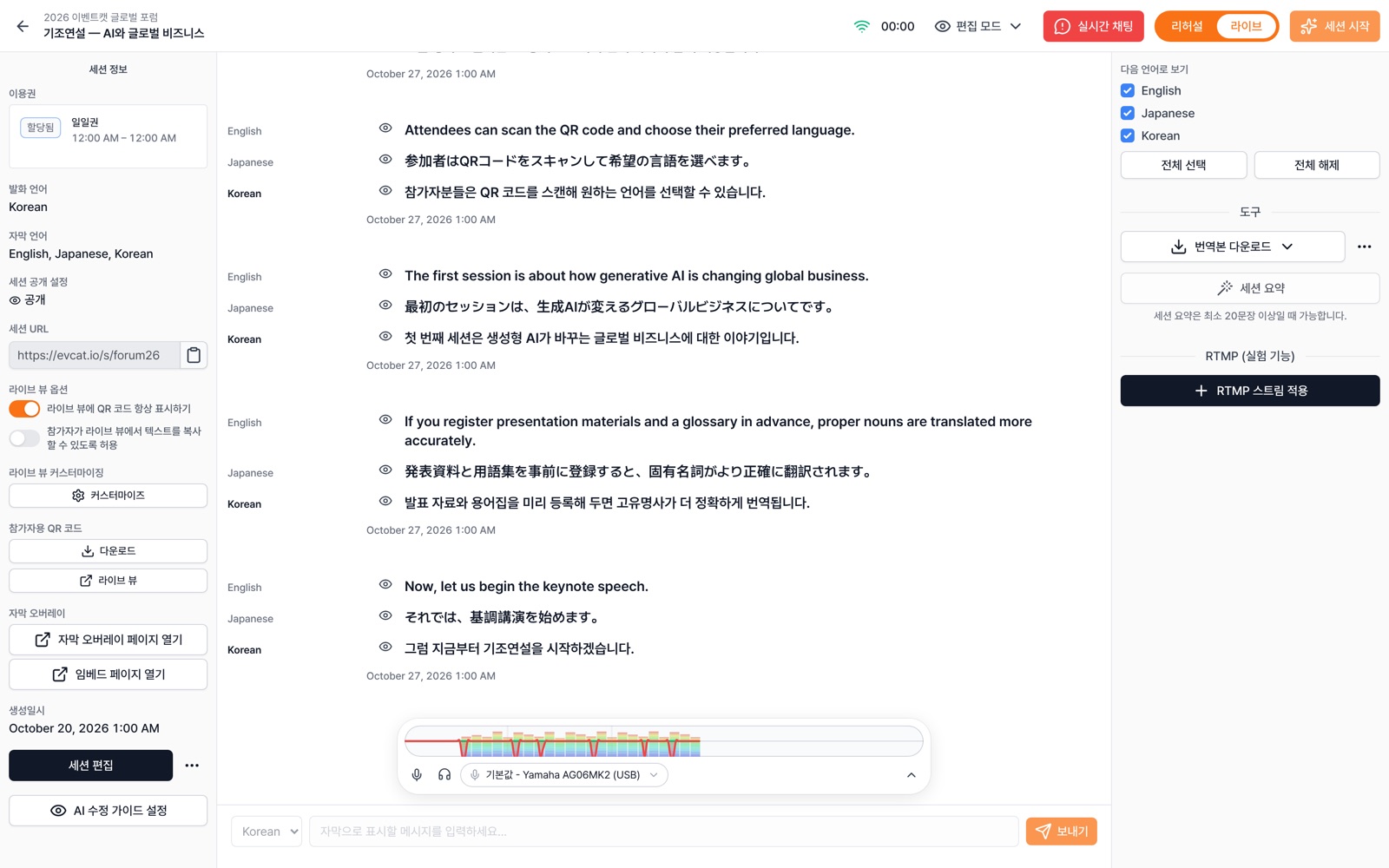
- Left — Session infoPass and language check, session URL, ① Live View options (always show QR, allow text copying) and Customize, participant QR and Live View, subtitle overlay, ② Embed page, Edit Session, ③ AI correction guide settings
- Center — Transcript and inputBelow the live transcript is the ④ audio input bar (input graph, mic selection). The ⑤ direct input box at the very bottom is Experimental.
- Right — Operator tools⑥ Display language, download translations, session summary, RTMP streaming
- Top — Session controls⑦ Display mode (Read Only · Edit Mode · Edit+Send) Experimental, live chat, Rehearsal/Live switch, Start Session
Changed Since ver 1, the audio input (mic) settings have moved from the right panel to the audio input bar below the transcript.