Pre-event setup
Create a conference
A conference is where you prepare and run your event. You do everything you need before the event here: create sessions, set languages, apply passes and set up live subtitles.
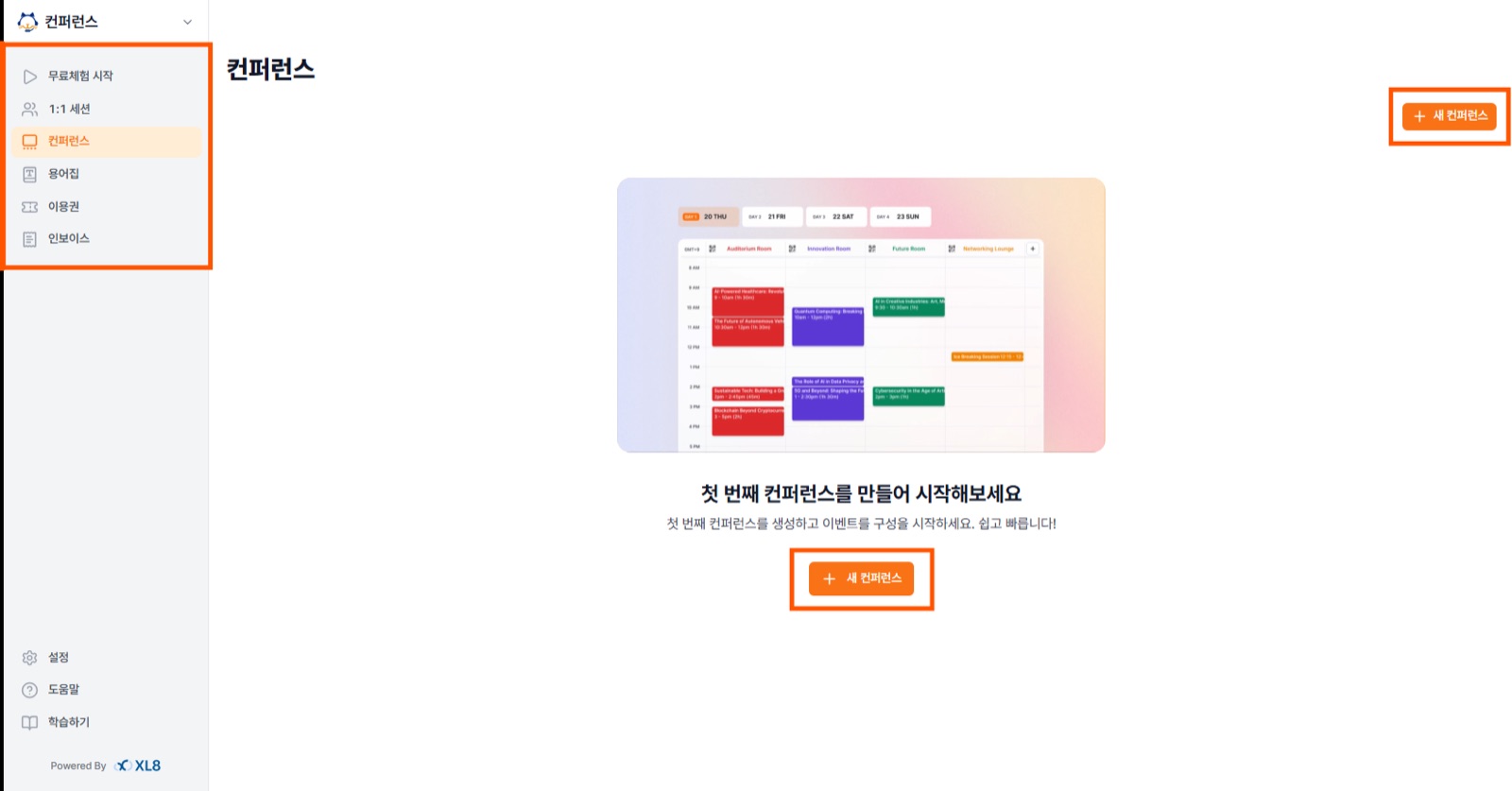
- In the left sidebar, go to the Conference menu.
- Click + New Conference at the top right or in the middle of the screen.
Sidebar menu
Start Free Trial · 1:1 Session · Conference · Glossary · Passes · Invoices
Enter conference details
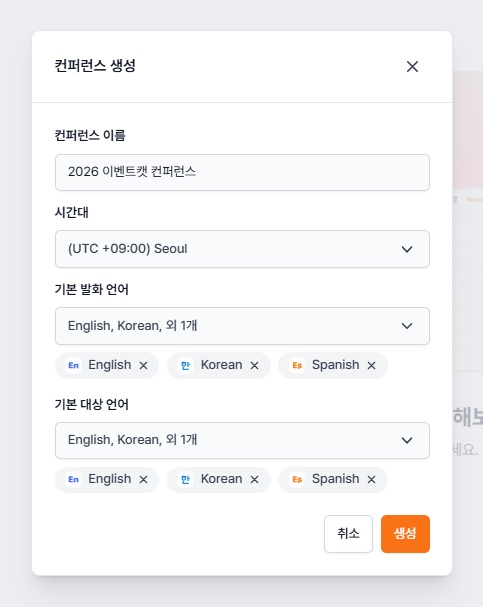
Fields
- Conference nameThe event name — e.g. 2026 EventCAT Conference
- Time zoneThe time zone where the event takes place — e.g. (UTC +09:00) Seoul
- Default spoken languageThe language speakers actually speak (you can pick more than one)
- Default target languageThe translation languages offered to the audience (you can pick more than one)
When you're done, click Create to save the conference.
Build sessions and set languages and glossary
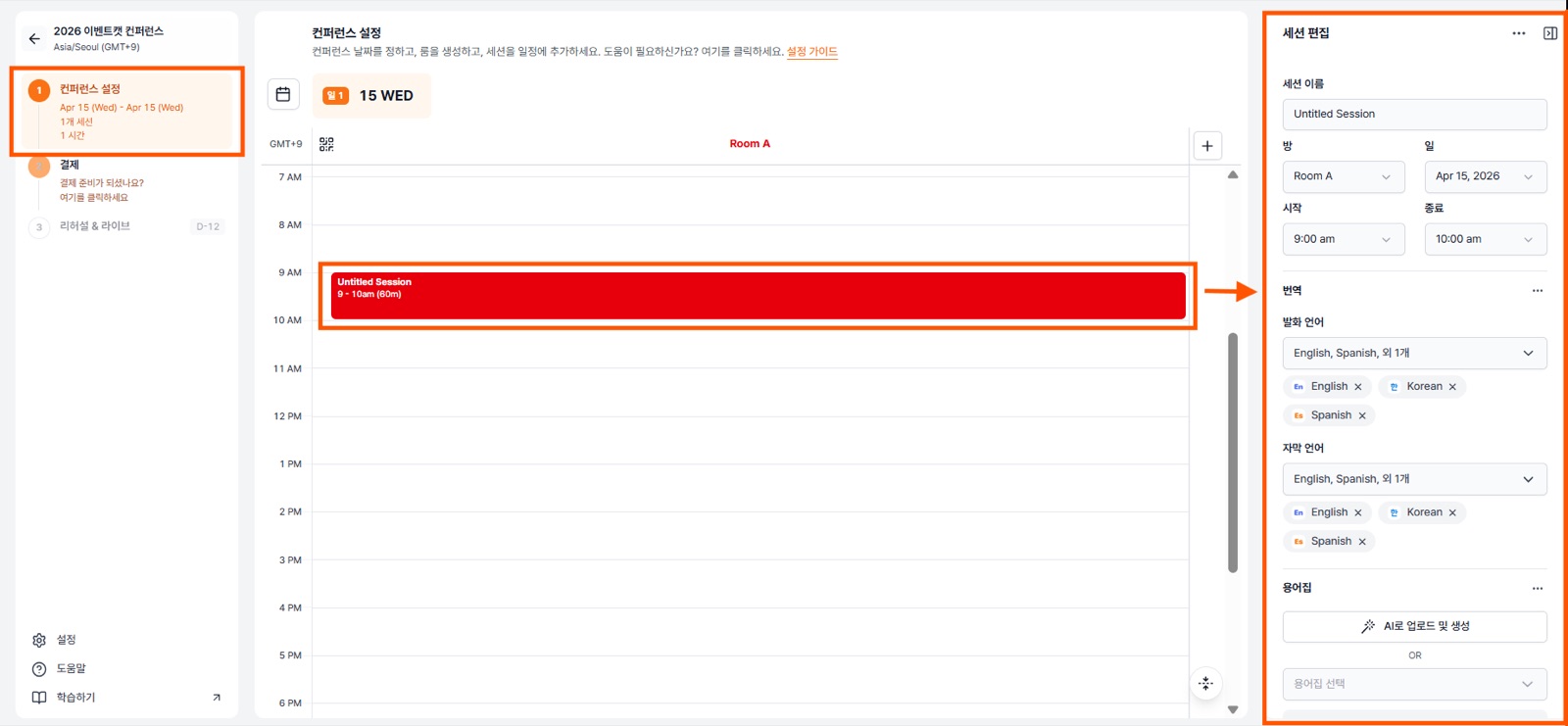
- Inside the conference, add sessions to match the event schedule. Drag across a time range on the timeline to create a session.
- In the Edit Session panel on the right, set the session name, room, date, and start and end times.
- Set the spoken language and subtitle languages for each session.
- In the glossary area, click Upload and generate with AI, or select an existing glossary to apply.
Tip Upload presentation materials in advance so proper nouns like people's and company names are translated more accurately.