
During the event · When terms come out wrong
Experimental This feature is turned on for some accounts only. To use it, contact us.
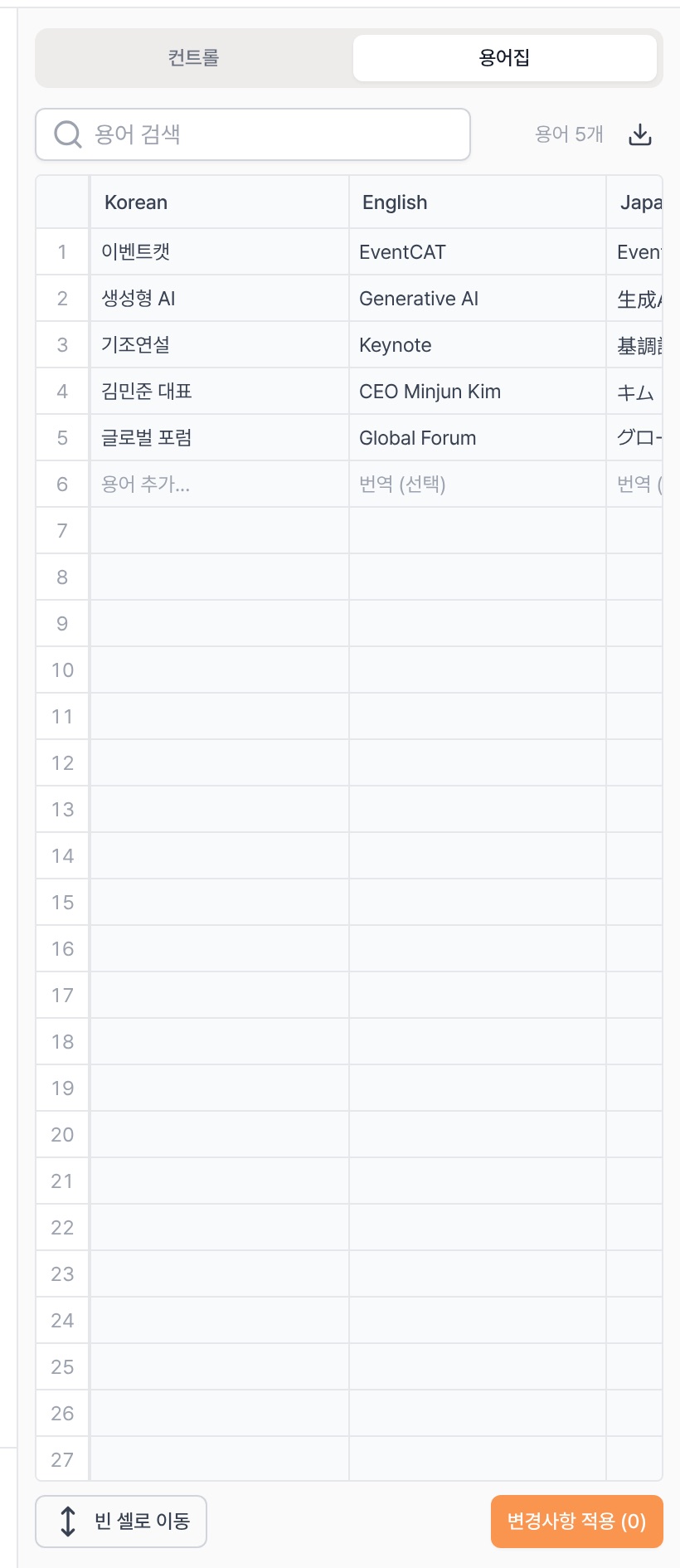
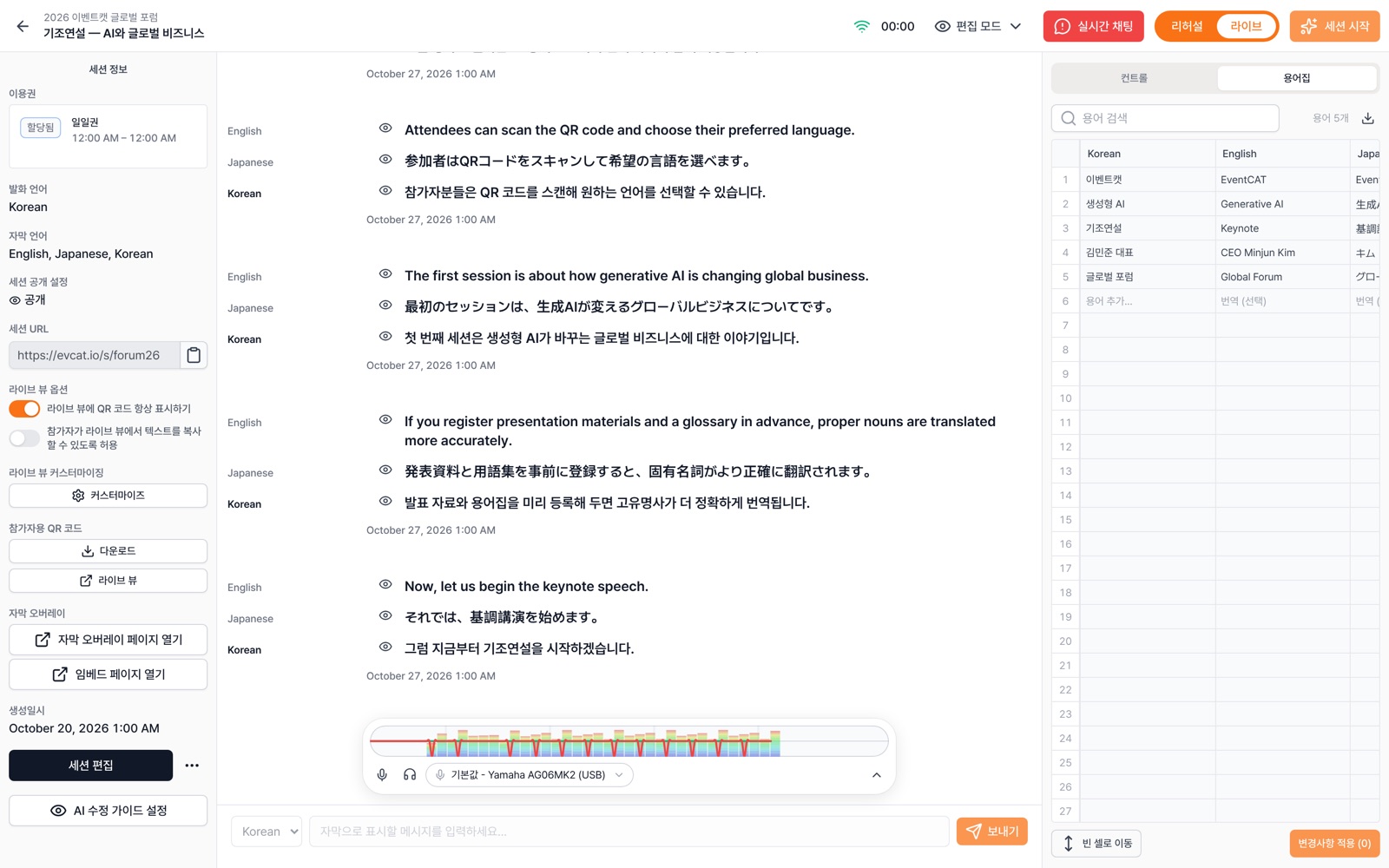
For accounts with this feature, the controller's right panel is split into two tabs: Control / Glossary. You can fix terms without stopping the session.
- After starting the session, open the Glossary tab in the right panel. (It's read-only before the session starts.)
- Edit a cell in the table, or type a new term in Add term... on the last row. Use Search terms to find terms, and Go to empty cell to add them quickly.
- Click Apply changes (n) to send them to the engine immediately. Until you apply, the tab shows the count as n unapplied changes.
- To keep using them after the event, download them (CSV) and add them to your original glossary.
Warning Live edits apply to this session only and don't change your original glossary. They're cleared when you end the session or leave the controller, so download them first. Only the conference owner can edit.
The Glossary tab works like a spreadsheet, with a column for each language. You can register up to 1,000 terms per session.
If the engine connection drops briefly, your changes are saved and applied once it reconnects.