
Event day · Right before you start
This part covers only the features you use on site after the session starts: switching to Live → fixing subtitles → direct input → split screen → live glossary → wrapping up.
- When rehearsal is done, end the session, and if needed, clear the rehearsal data with Delete translations.
- At the top right of the controller, switch to Live mode. The page reloads and the mode changes.
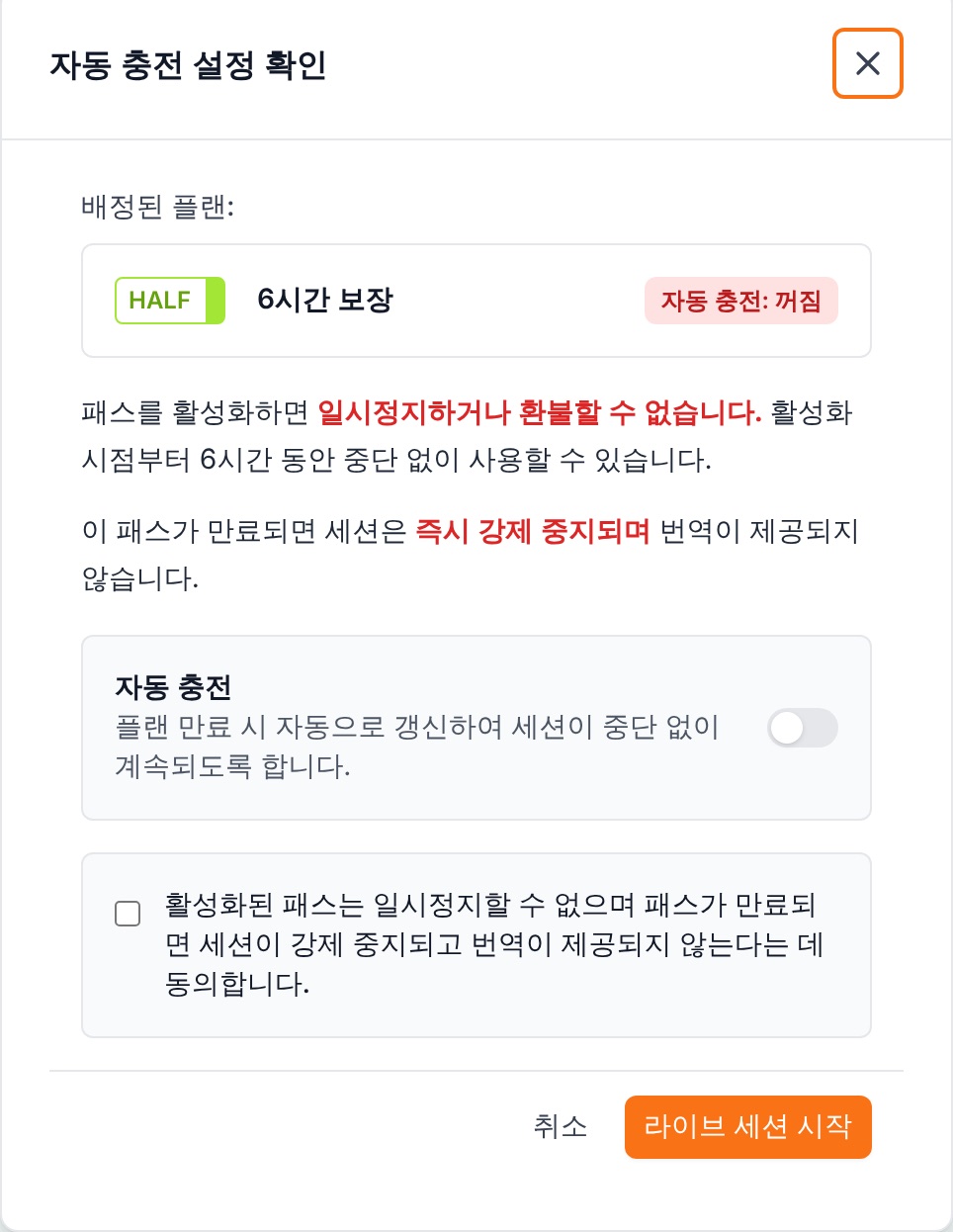
- Click Start Session. When you're running on a pass, the Confirm auto top-up settings window appears (p.07).
- Check your auto top-up choice, tick the checkbox to agree, and click Start Live Session to start the real event.
Check Right before you start, check the internet connection and the voice graph on the audio input bar again. Even small audio differences can affect speech recognition and translation.
Top: Rehearsal/Live switch and Start Session button · Bottom: live start confirmation window