
During the event · When you need subtitles instead of speech
Experimental This feature is turned on for some accounts only. To use it, contact us.
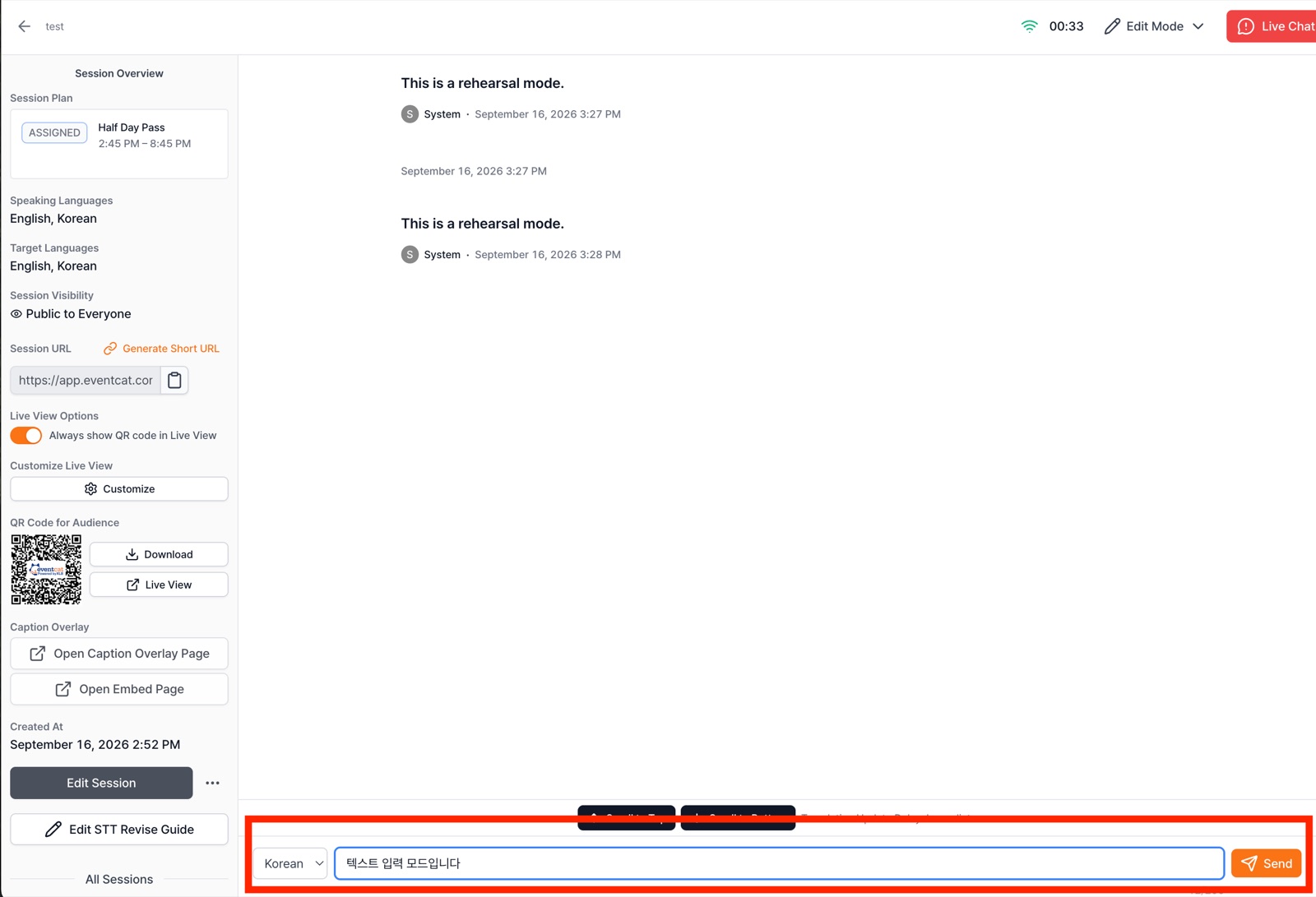
For text you need on screen without anyone saying it, like announcements or notices, type it in the input box at the bottom of the controller and send it as a subtitle.
- On the left of the input box at the bottom of the controller, choose the input language. The language you choose is treated as the source.
- Type your sentence in the Type a message to display as subtitle... box. You can enter up to 200 characters at a time.
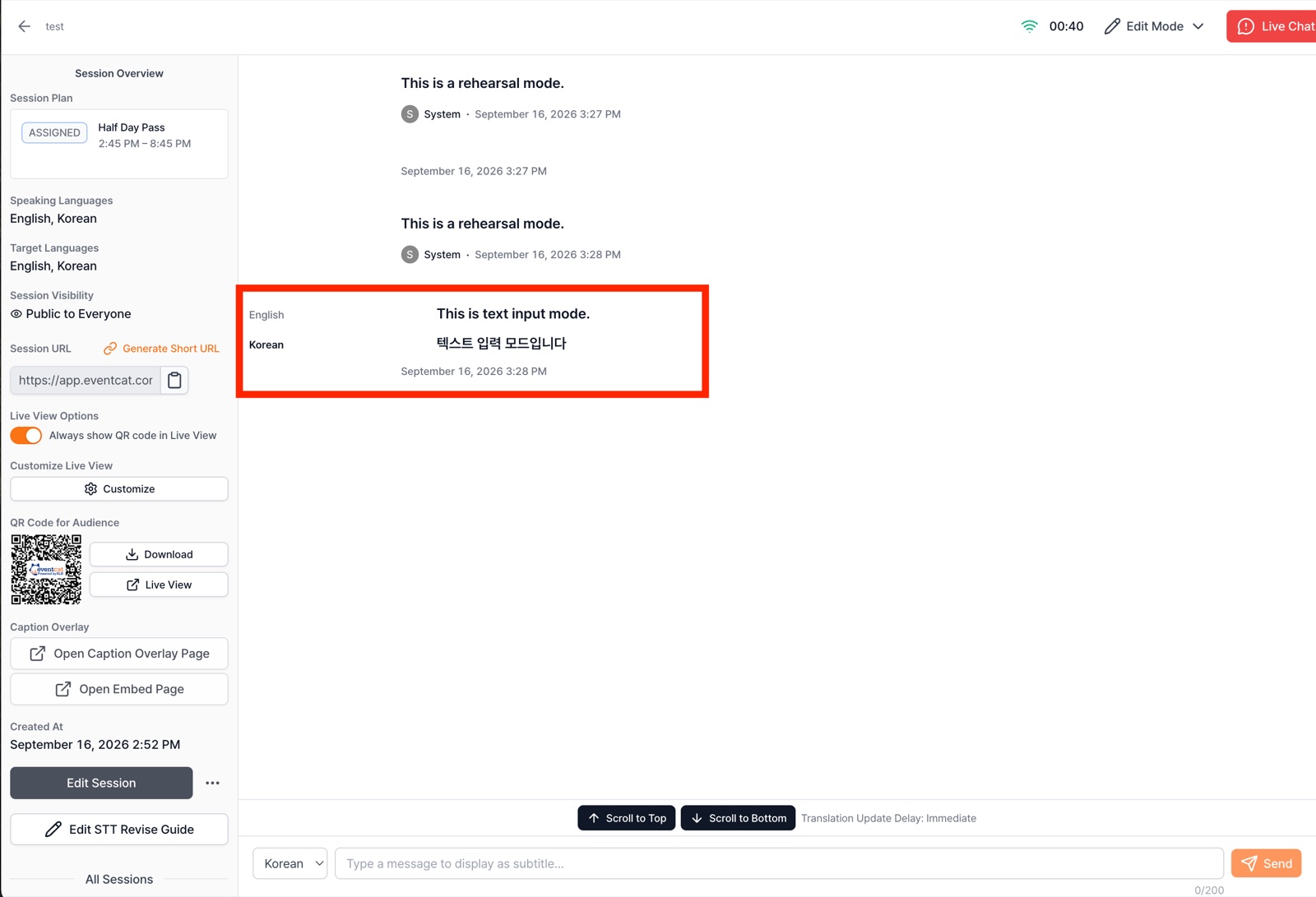
- Click Send. The sentence is added to the transcript and shows the same way in the Live View, via QR and in the caption overlay.
- Session start and break announcements
- Speaker introductions
- Summarizing questions
- Temporary fallback when a mic fails
- Spelling out proper nouns
Warning Your sentence is translated from the selected language into the other subtitle languages. If you type a sentence that's already translated, it gets translated twice.